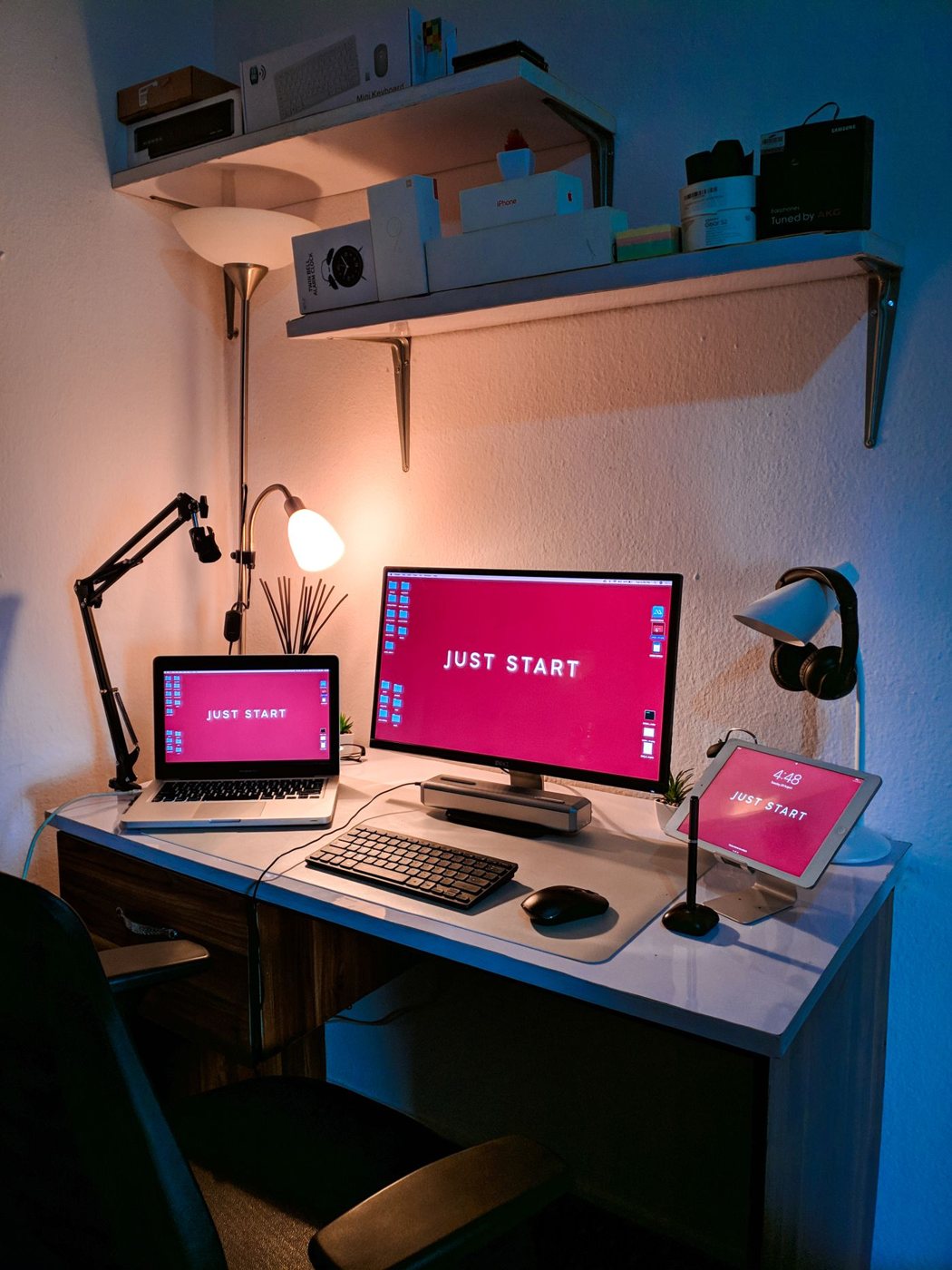
Two screens with the same resolution can feel very different if one is much larger. Resolution describes the pixel grid; physical size determines how closely those pixels are packed. Scaling controls how large many interface elements appear. You need all three pieces to estimate the workspace you can comfortably read.
A high-resolution display can render text finely while using scaling to keep it a sensible size. It does not have to show every button and word at the smallest possible setting. Conversely, buying more pixels does not guarantee that more application windows will fit at the text size you prefer.
Compare at the size you will use
Open a familiar page or document on a display you can inspect. Adjust the system scale and application zoom until reading feels ordinary from your intended distance. Then arrange the windows you need side by side. This is a more useful comparison than counting how many tiny windows a promotional screenshot contains.
Application zoom and system scaling affect different things. Enlarging a document can leave its menus unchanged, while system scaling changes much of the interface. Some older applications handle scaling less gracefully than newer ones, so include any essential legacy software in the check.
Microsoft recommends the display's recommended resolution for normal use and notes that lower resolutions can make text less sharp. Use scaling to explore larger interface sizes before reducing the pixel resolution. If the expected native mode is unavailable, investigate the connection and graphics support instead of assuming the panel is defective.
Mixed displays need a trial
A laptop and external monitor may use different scaling values. Move a document between them and check text, dialog boxes, and the pointer's transition across the boundary. Arrange the screens in display settings to reflect their physical positions, then test the applications used most often.
Consider screen sharing too. A very large desktop can become difficult for participants on smaller devices to read. Sharing a single application or preparing a smaller presentation window may be clearer than sharing the whole display.
When comparing specifications, write down the diagonal size, native resolution, intended scaling, and supported refresh rate over your actual connection. That prevents a nominally impressive panel from becoming an awkward match for the computer. The result you want is readable space for your work, with clear text and predictable behavior, rather than a pixel count considered in isolation.