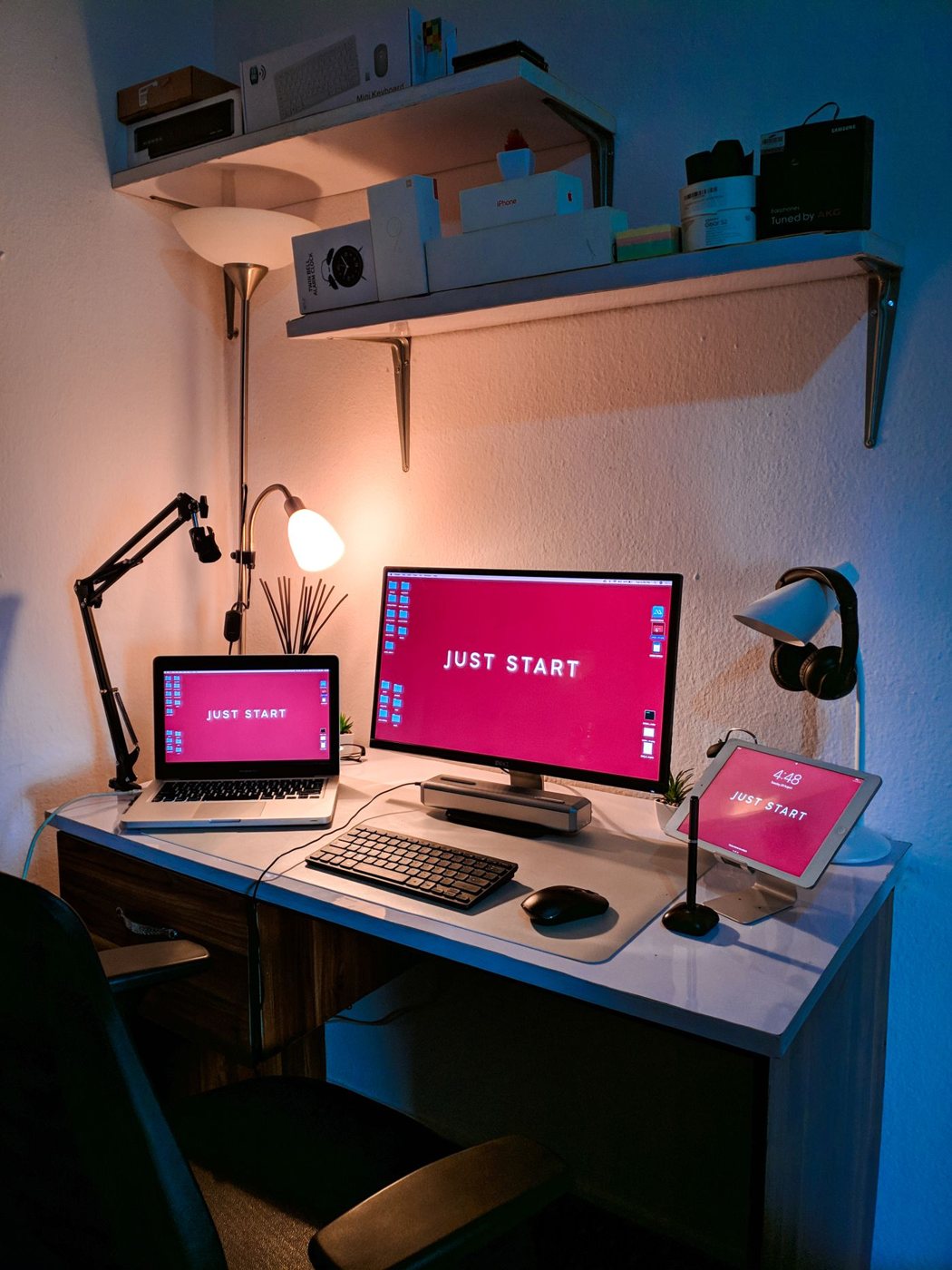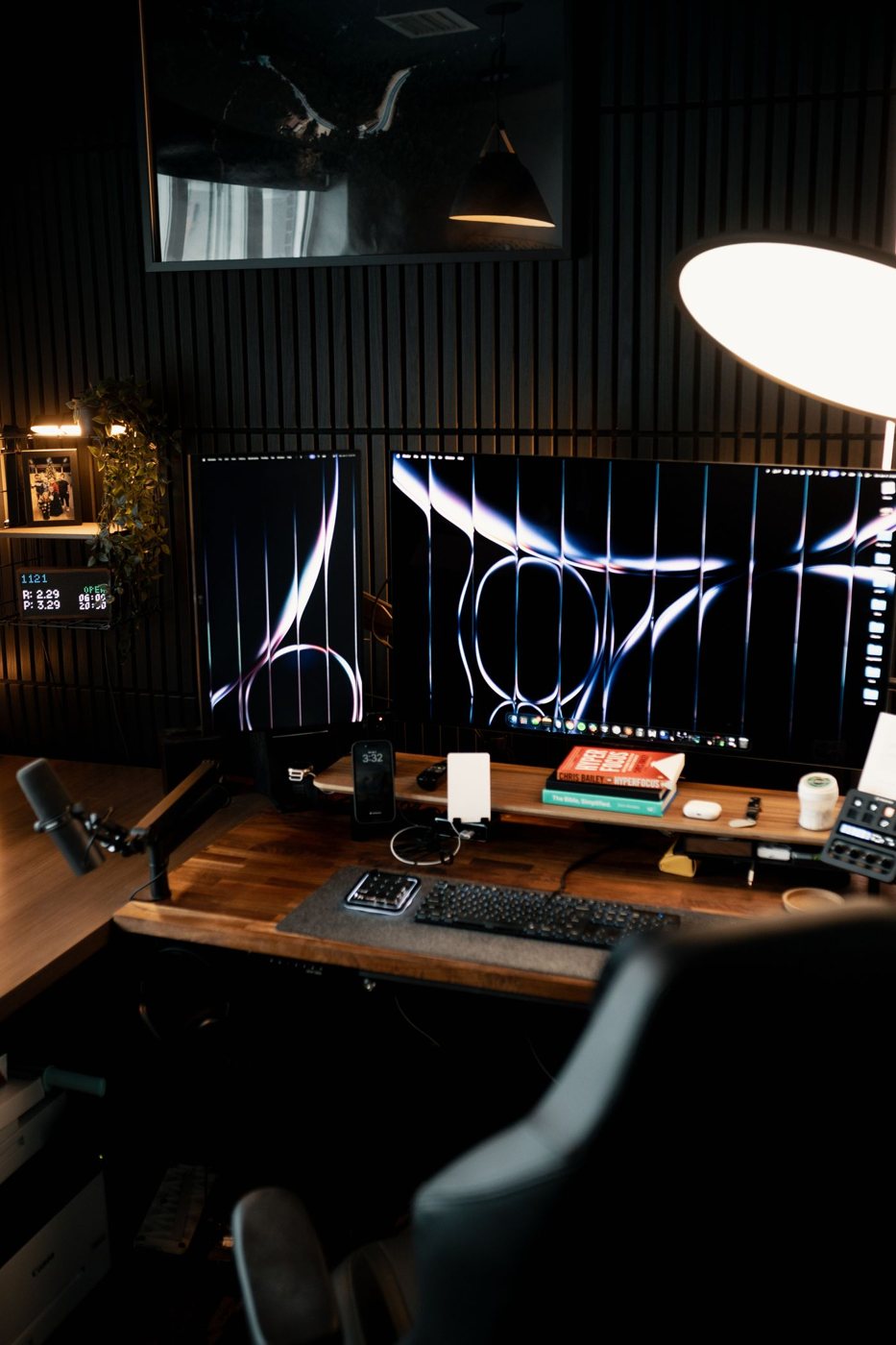
The second screen should have a job. It might hold a reference drawing, a meeting window, or a document being compared with another. Naming that job helps you choose its size and position, and prevents a spare display from becoming a permanent place for distracting notifications.
First check the computer's supported external-display count and the resolution and refresh rate of the proposed pair. Include the dock or adapter in that check. Two video connectors on a dock do not, by themselves, establish that your computer can drive two independent desktops through it.
Work out where your attention goes
If one screen carries most of your work, put that screen directly ahead and place the second beside it. If you frequently work across both, try their shared boundary nearer the center and assess how much you turn. The best arrangement can change with the task; a symmetrical photograph is not a reason to keep a less useful position.
Match the heights of the areas you read most often rather than forcing two different enclosures into an identical outline. Different panel sizes and scaling settings can make equal top edges less important than comfortable text placement. Check the stands' adjustment ranges before ordering.
In Windows, the display arrangement can be dragged to match the physical layout. Microsoft also documents the Identify control, which makes it easier to determine which on-screen rectangle represents each monitor. Move the pointer across the join after applying the arrangement and correct any surprising jumps.
Test the whole working session
Open the applications used together. Check whether text remains readable when a window crosses between displays with different scaling. Start a meeting and select the intended screen or window for sharing. Keep private messages and unrelated documents outside the shared area.
Next, disconnect and reconnect the laptop if that is part of the daily routine. Observe where windows return and whether either display fails to wake. Windows offers options to remember window positions and minimize windows on disconnection, but the useful setting depends on how you work.
Leave enough cable slack for normal display adjustment while keeping connectors free from strain. Label the computer end of similar cables if that will help with future troubleshooting. Finally, spend a day using the arrangement before buying matching accessories. If the second monitor rarely earns attention, a different window layout on the main screen may solve the original problem with less equipment.
Plan the fallback as well as the expanded view
A laptop user should be able to disconnect without losing the thread of the work. Before leaving the desk, save files and check where essential windows move. An application dialog that opens on a missing screen can look like a stalled program, so learn the operating system's window-recovery method for your setup.
At a shared desk, document the input selection and cable that belong to each display. If another person changes the input, the next user should not need to dismantle the connection to discover why one screen is blank. A small label on the cable is often enough.
Keep one known working direct connection in mind for troubleshooting. If a docked pair fails, testing a single display directly can help distinguish the display from the dock path. Change one part of the chain at a time and restore the original arrangement after the test.