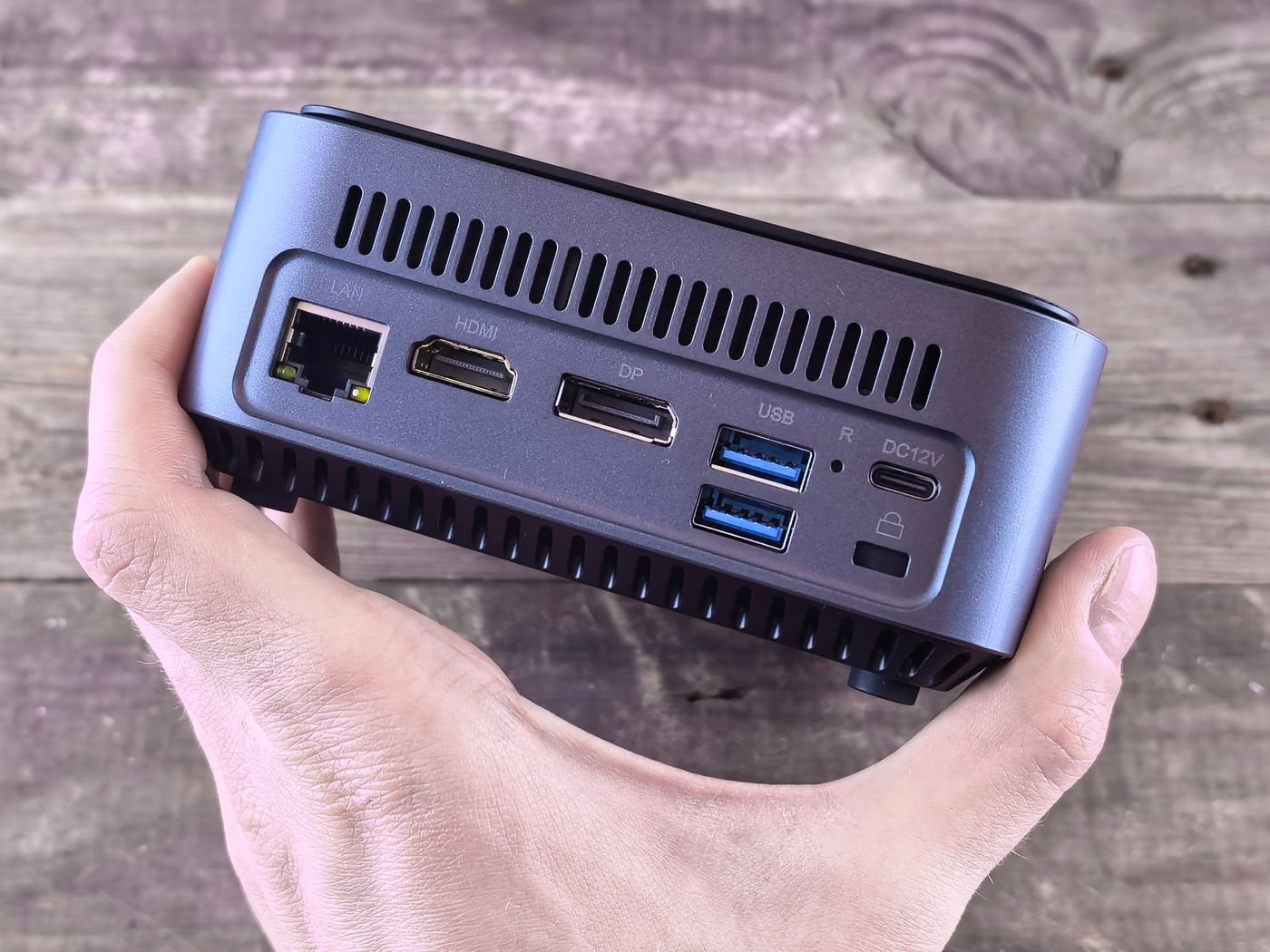
A monitor's rear panel can include several sockets that look equally useful but perform different jobs. One may receive video, another may send USB data back to the computer, and a USB-C port may combine several functions. Read the port descriptions and connection diagram before assuming every socket is interchangeable.
Trace one complete signal path
Write the path from computer to display: computer output, cable or adapter, and monitor input. Check the resolution and refresh rate supported by that path, including any dock. The monitor's maximum specification may be available on only some inputs or with particular settings.
For USB-C, verify that the computer port supports the video method the monitor requires. USB-C names a connector family; it is not a promise that every computer socket provides a display signal. Check the supplied cable's stated functions as well. A charging cable can be unsuitable for the intended video connection.
If the monitor is expected to charge a laptop, find its specified power delivery to the host. Compare that with the laptop manufacturer's charging requirements and your workload. Also check whether the advertised value changes when other monitor ports are in use. Video working successfully does not prove the charging arrangement is adequate.
Separate the USB hub from the picture
A monitor with USB-A ports may need an upstream USB connection before a keyboard or webcam plugged into it can communicate with the computer. HDMI video alone does not automatically provide that connection. Look for an included upstream cable or a documented USB-C arrangement.
Some displays offer input switching or an integrated keyboard-and-mouse switching feature. Read what actually switches: video, USB data, or both. If two computers are involved, verify which upstream connection belongs to each input and whether switching requires the monitor menu or software.
Audio also deserves a line in the checklist. Determine whether the monitor includes speakers, merely accepts an audio signal, or provides a headphone output. A headphone socket is not the same as a microphone input for a headset.
Finish by checking physical access. Downward-facing ports can be difficult to reach near a shelf, and a large adapter can interfere with a stand or wall. Allow room for connectors without tight bends. A small drawing of the complete connection is often enough to reveal a missing cable before the monitor arrives.