Memory capacity is easiest to judge while doing actual work. Open the applications and documents that normally overlap, then look at the operating system's memory information. A quiet desktop immediately after startup tells you little about what happens during a meeting with a spreadsheet, browser, and document editor open.
Do not treat a high used-memory number by itself as a diagnosis. Systems use available memory for caches, and the meaningful signs include persistent pressure, heavy swapping, and repeated pauses when moving between active applications. Note which task coincides with the slowdown. A slow website or network drive can feel similar without being a memory problem.
Start with requirements, then allow for overlap
An application's minimum requirement usually describes a starting condition, not your entire multitasking session. Check the publisher's recommendation for the kind of files you use. Large image documents, virtual machines, and data analysis can change the calculation considerably compared with short documents and email.
Consider a realistic increase in workload over the computer's intended life. If you are about to begin a course that needs a specific application, include that requirement now. Avoid buying capacity solely for an imagined future task with no connection to your plans; that money may improve a screen or backup arrangement you will use immediately.
Memory and storage are not interchangeable purchase choices. More SSD space does not provide the same room for active work, even though operating systems can use storage when memory is under pressure. Likewise, more RAM does not solve a drive that is full of project files.
Read the service information before assuming an upgrade
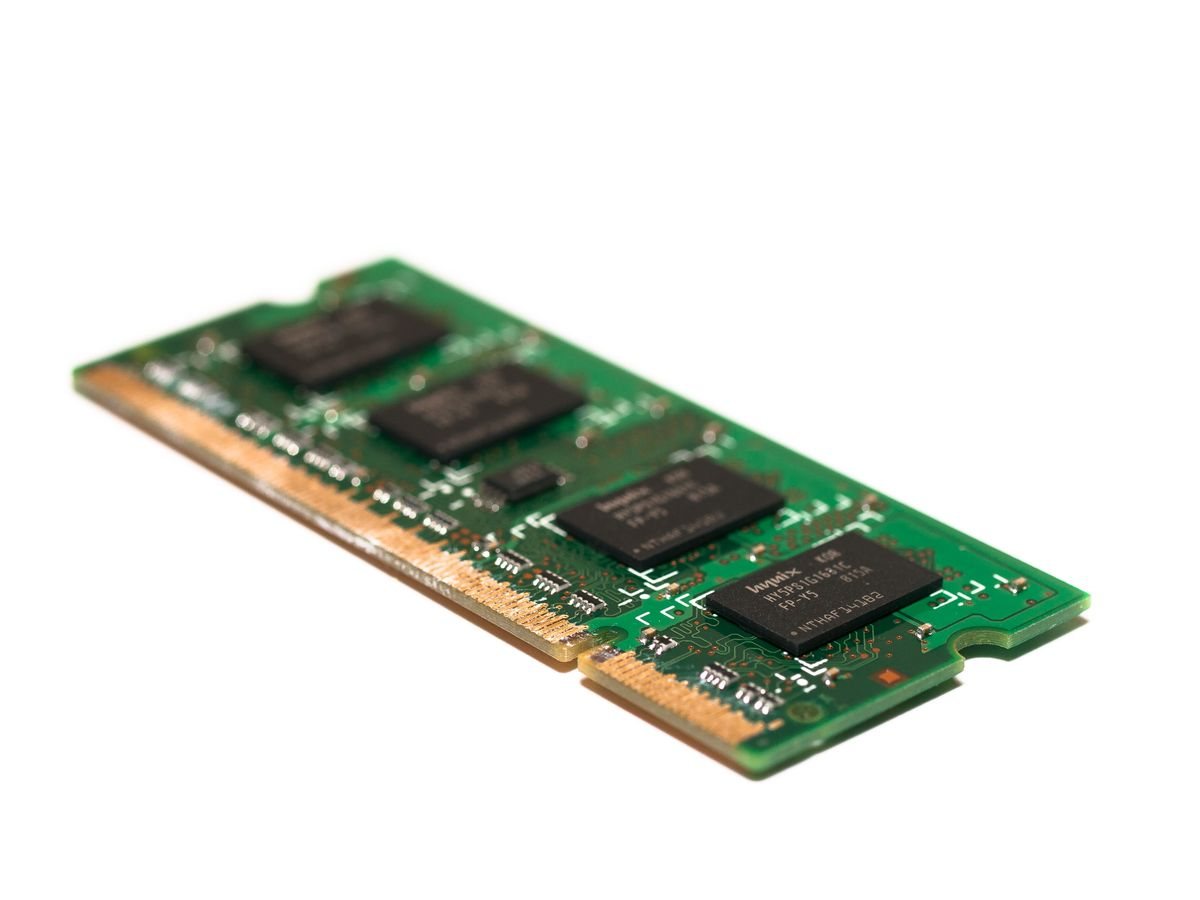
Find the exact model's supported memory type, maximum capacity, and physical arrangement. Some systems use replaceable modules; others have memory integrated into the board or package. A specification saying that a product family supports a large capacity does not mean your individual unit has empty slots.
If an upgrade is possible, check the required module format and generation, the existing configuration, and any pairing instructions. Desktop and laptop modules can differ physically. Follow the manufacturer's service procedure and power-disconnection instructions rather than opening the computer while relying on a generic video.
For a new computer, compare the total cost of the configuration you need now with a documented later upgrade. For an existing one, establish that memory is the limiting factor before spending. The goal is enough room for your working set with sensible headroom, not the largest number offered in a configurator.
A concrete comparison
Suppose your ordinary session includes a meeting, a browser, and a large workbook. Reproduce that combination on the current computer, then close one application at a time while watching responsiveness. If closing the workbook changes everything, investigate its requirements and complexity. If pauses remain while memory pressure is low, a memory upgrade may not be the next useful step.
For a replacement machine with fixed memory, compare the configurations against that session and any confirmed new software. For a machine with replaceable modules, ask whether starting smaller actually saves money after the later parts and installation are included. Sometimes the factory option is convenient; sometimes a supported upgrade is economical. The documentation and total cost decide, rather than a general rule that one route is always better.
Save the workload description with your purchase notes. It gives you a way to judge the new computer and explains the decision if your needs change later.