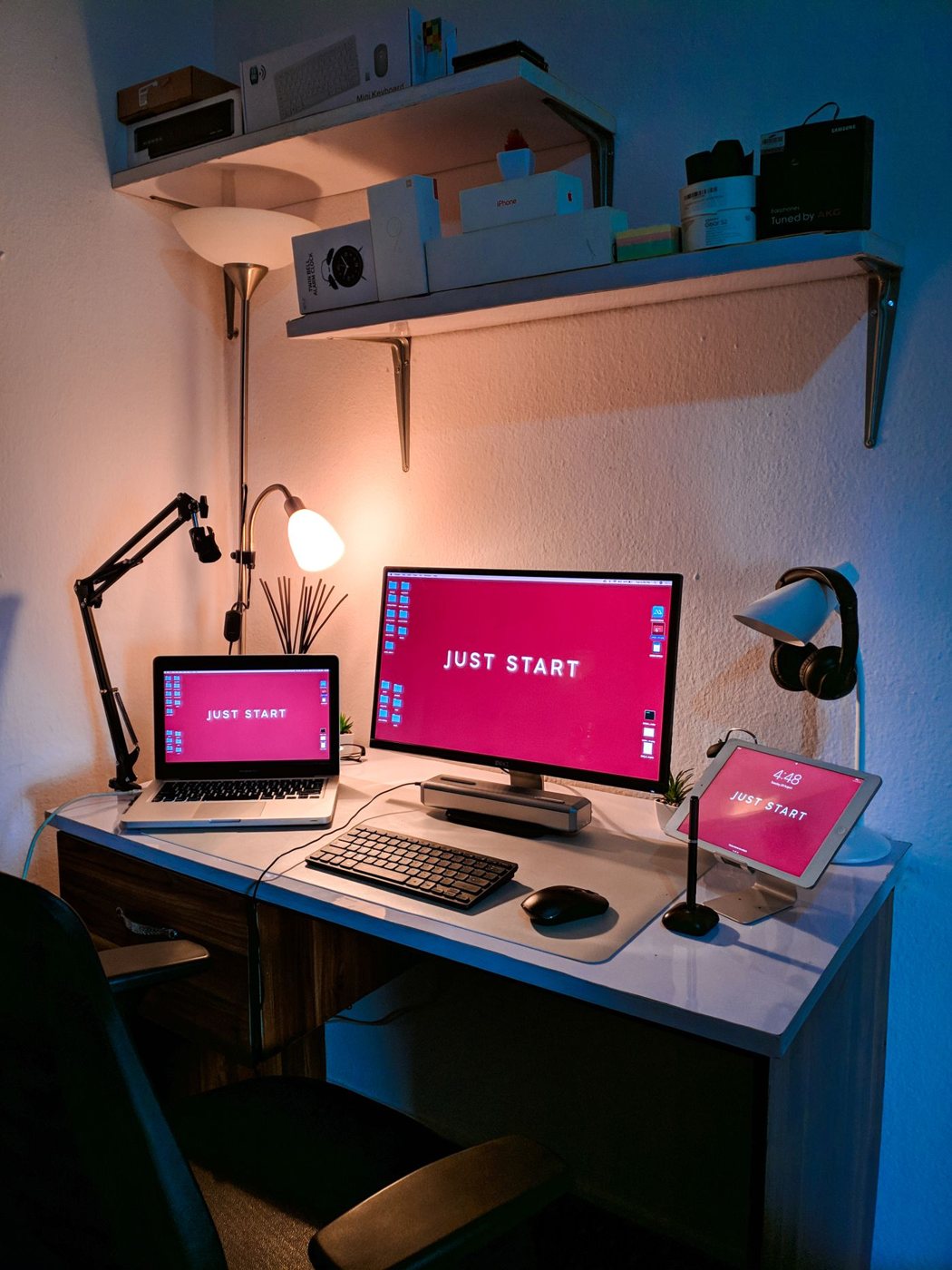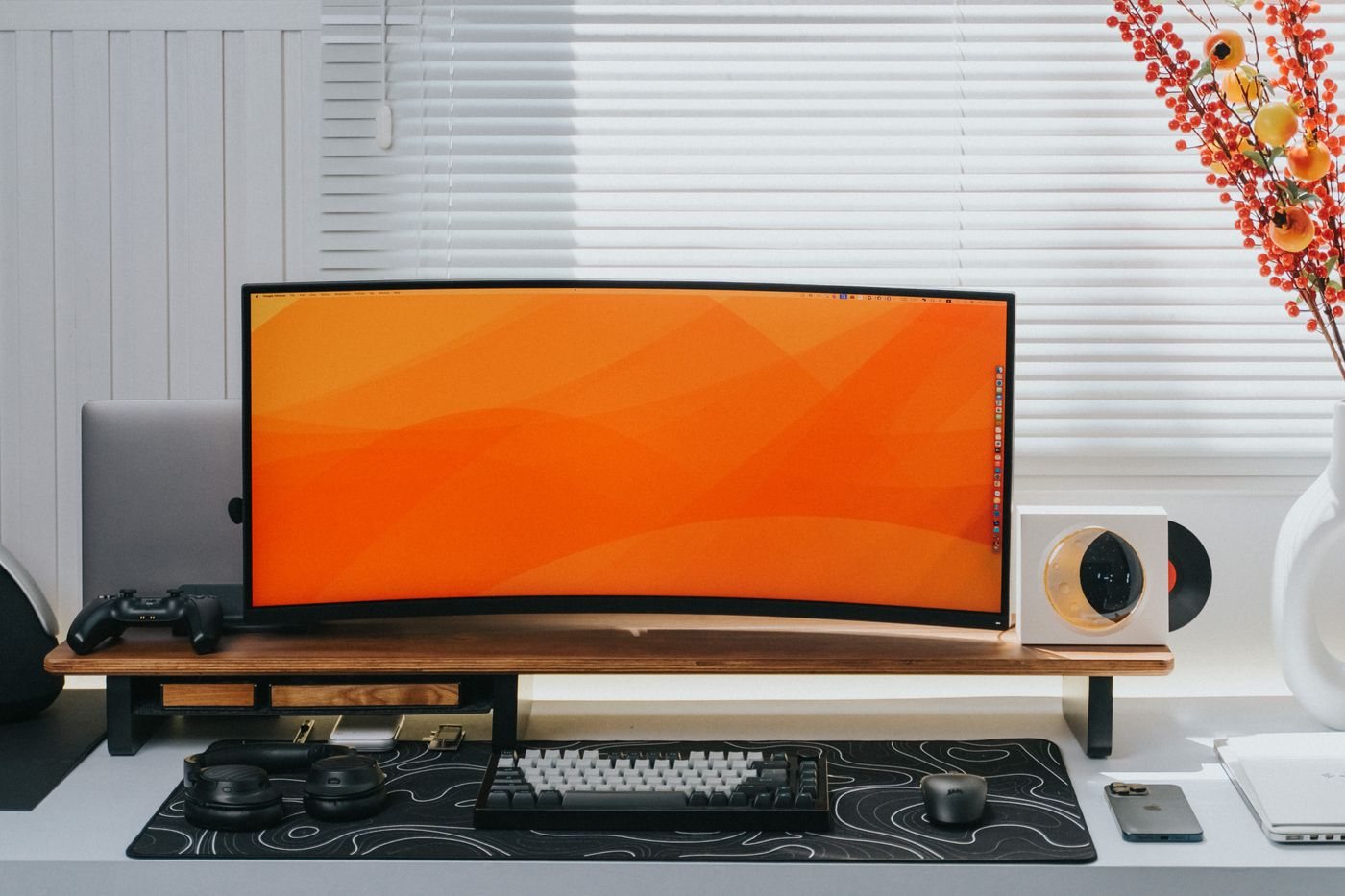
Refresh rate describes how often a display updates its image each second. Higher rates can make pointer movement, scrolling, and window motion appear smoother. That difference may be noticeable during ordinary work, but it does not make a calculation finish sooner or improve the detail of a stationary document.
If you are deciding whether it matters to you, compare the same scrolling page at two supported rates on a suitable screen. Use your usual viewing distance and scroll speed. Some people value the difference immediately; others would rather spend the budget on more readable space or a better stand.
Check the rate at the resolution you want
A display's headline maximum may not be available through every input or every adapter. The computer, dock, cable, and monitor must support the intended mode together. Read the connection-specific table in the monitor documentation, especially if you plan to use a laptop dock.
Windows shows supported choices in Advanced display settings. Microsoft notes that the available rates depend on the display, and that selecting some rates can change resolution. After changing a setting, confirm both values rather than assuming the larger number preserves everything else.
Do not confuse refresh rate with response time. They describe different aspects of display behavior, and a short advertised response time is not a complete description of motion quality. For office work, evaluate text during scrolling and ordinary pointer movement instead of relying on gaming-oriented labels alone.
Balance motion with the rest of the day
On a laptop, a faster display mode can affect power use. If the system offers an appropriate adaptive or dynamic mode, read how that feature behaves on the exact model. Do not assume that all displays with variable refresh support provide identical operating-system behavior.
Video calls and movies also have their own frame rates and processing limits. Buying a faster monitor does not automatically make a remote participant's video smoother. Likewise, network delays or an overloaded application cannot be repaired by a display setting.
When upgrading, keep your priorities visible: comfortable text size, suitable connections, brightness range, reliable mounting, and then the motion behavior you prefer. If a higher rate is a feature you use constantly and the computer supports it cleanly, it can be worth including. If it requires an expensive connection overhaul for a difference you barely notice, another part of the workspace may deserve the budget first.