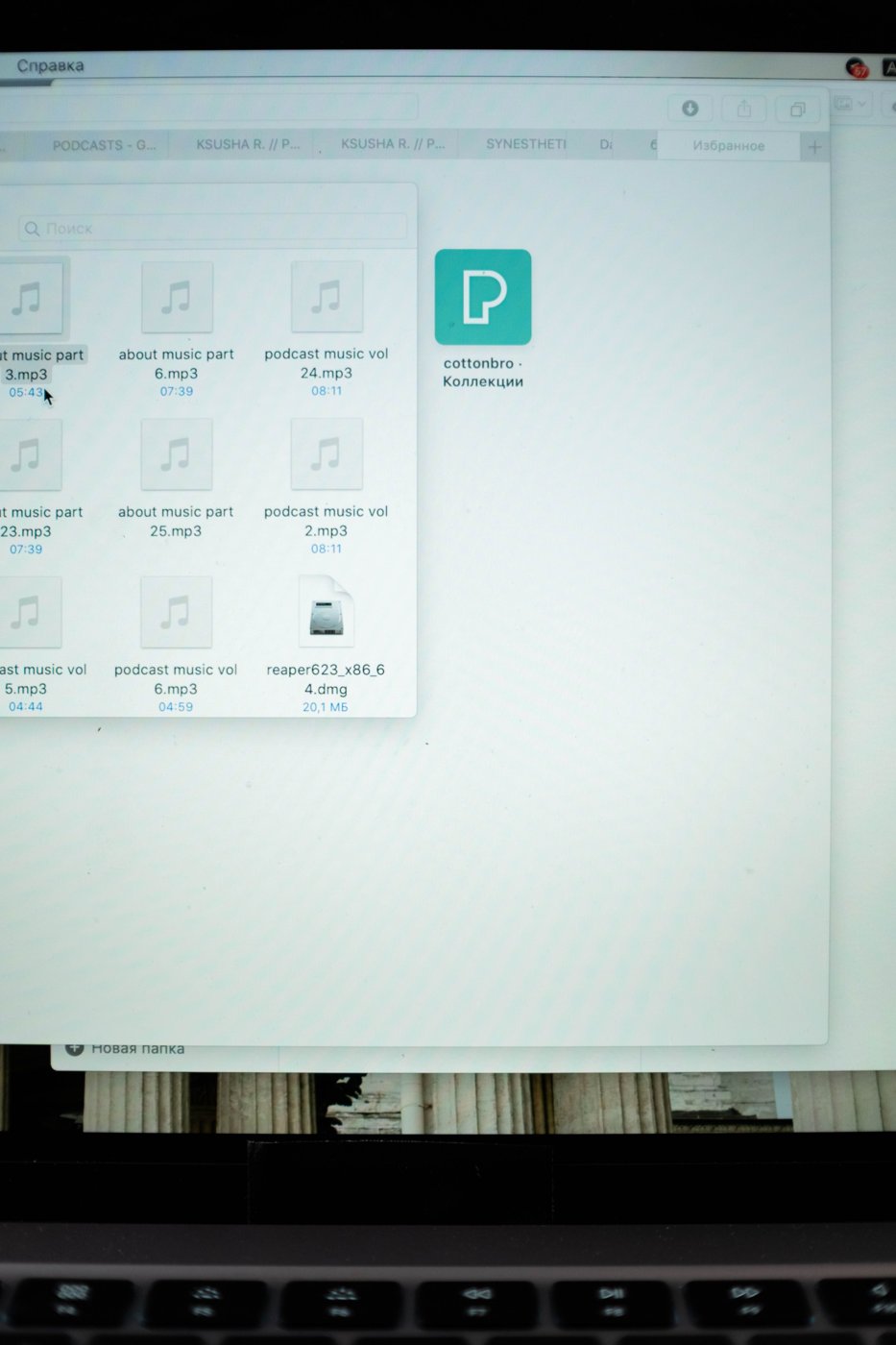
Downloads is where files arrive, not necessarily where they should live. A receipt, an application installer, a spreadsheet attachment, and a reference photograph can land beside one another within minutes. Their shared arrival location says little about how long each should be kept or where you will look for it later.
Start by identifying anything you are actively using. An attachment opened from Downloads may have become the only edited copy of a document. Move that work to its project folder and reopen it from the new location before removing anything. Check that the saved changes are present; a familiar filename alone does not establish that you found the right copy.
Sort by purpose before deleting
Useful records should move to the area they document. Put a purchase receipt with the relevant order or equipment record, and a project attachment with that project. Give vague names enough context to recognize them later. If a file came from an important email, retain a reference to the sender and date in the project notes.
Installers need a separate decision. You may be able to download a current installer again, but an older supported version or a package supplied for a particular device may be harder to replace. Check the publisher's availability and your licensing needs before assuming all installers are disposable. Do not run an unfamiliar downloaded file merely to identify it.
Look at apparent duplicates individually. A number appended to a filename often means the browser downloaded another copy, but the contents may have changed between downloads. Compare size, dates, and, when necessary, the actual contents. Keep the correct working copy in its destination before deleting redundant arrivals.
Establish a short intake routine
After completing a task, move the files worth keeping and remove the temporary material you understand. This is easier than making decisions about a year's accumulation at once. A weekly review can catch items left behind, especially documents downloaded in a hurry before a meeting.
Be cautious with automatic age-based cleanup. An old file can still be the only copy of an important record, while a new download may already be unnecessary. Set automation only after your saving habits make its scope predictable.
For a large backlog, work in small batches and leave uncertain files in a clearly named review folder. Record why an item is uncertain. Clearing the visible list is less useful than being able to explain where the necessary files went and how to retrieve them.