Sort a small sample of the backlog before selecting a scanner. Loose office pages, bound material, fragile photographs, and receipts may need different handling. The fastest sheet-fed scanner is not automatically suitable for the most delicate or awkward originals in the collection.
Match the feed path to the paper
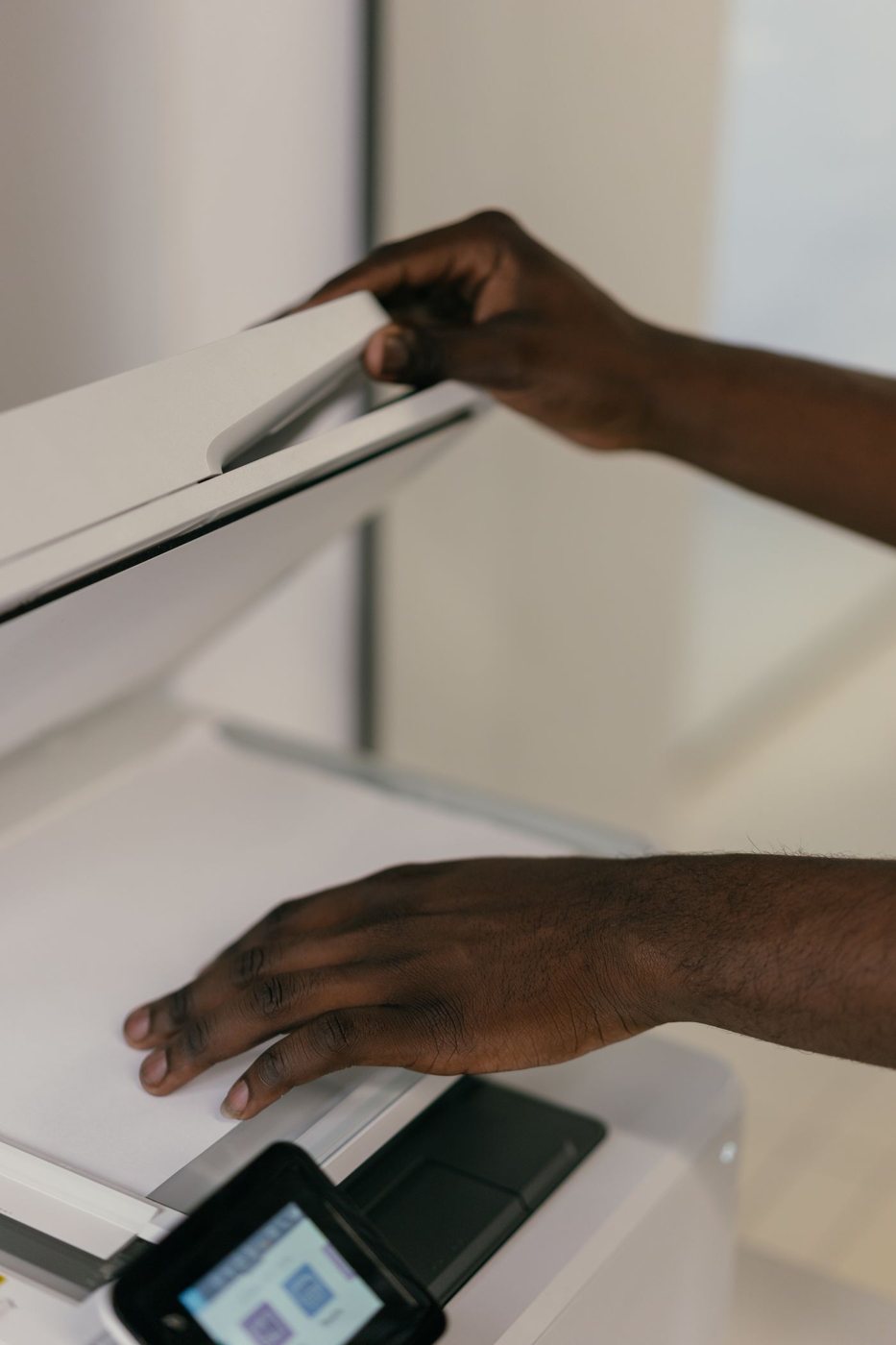
An automatic document feeder can reduce handling for compatible loose pages. A flatbed supports material that should not pass through rollers, subject to the scanner's size and handling limits. Check the manufacturer's restrictions for staples, folds, thick cards, photographs, and damaged paper.
If both sides contain information, verify duplex scanning rather than assuming a feeder captures both sides. Read the speed measurement carefully: pages and images can describe different counts when two sides are involved. Include loading, removing fasteners, and checking results in your time estimate.
Test mixed batches cautiously. Thin receipts and ordinary sheets may not feed well together even if each is supported separately. Separate them by type if that reduces missed pages or repeated rescanning.
Choose useful detail and software
Epson's scanner guidance lists 300 dpi as a starting point for OCR and filing, while emphasizing that the right setting depends on the intended output. Treat that as a test setting, not a rule for every original. Fine print, photographs, or enlargement may call for a different choice.
Inspect a sample at normal reading size and verify that small text, stamps, and faint marks remain legible. Higher resolution creates more data and does not repair poor focus, clipped pages, or excessive automatic cleanup. Compare the actual result before processing the whole backlog.
Check software support for your operating system, searchable PDF output, naming, and batch separation. OCR makes text searchable but should be reviewed before you rely on names, dates, or numbers. Determine whether required features are included or depend on a separate subscription.
Plan storage and backup before beginning. Use a consistent naming approach and keep a record of completed batches so that you do not scan the same pile twice. Preserve originals according to your actual retention requirements; a successful scan alone is not a reason to discard an important document.
A scanner purchase should reduce the total work of preparation, capture, checking, and retrieval. Borrowing or testing a candidate on a representative batch can reveal more than a headline speed. Choose the device that handles your paper reliably and produces files you can find and read afterward.
Run a small batch from start to finish
Choose a sample that includes an ordinary page, a faint copy, a two-sided document, and any unusual paper you expect to scan, provided each is supported. Capture them, name the files, check page order, search for a known word, and restore one file from the backup location. This tests the workflow rather than the scan button alone.
Inspect automatic blank-page removal and cropping carefully. A lightly marked reverse side may contain information even if the software regards it as blank. A cropped margin can remove a handwritten note that was not part of the printed form. Keep the original available while checking these settings.
If several household members will use the scanner, save a clear routine for common documents and a separate route for exceptions. A useful default reduces repeated choices, but it should not silently force photographs or fragile originals through a workflow designed for loose office paper.