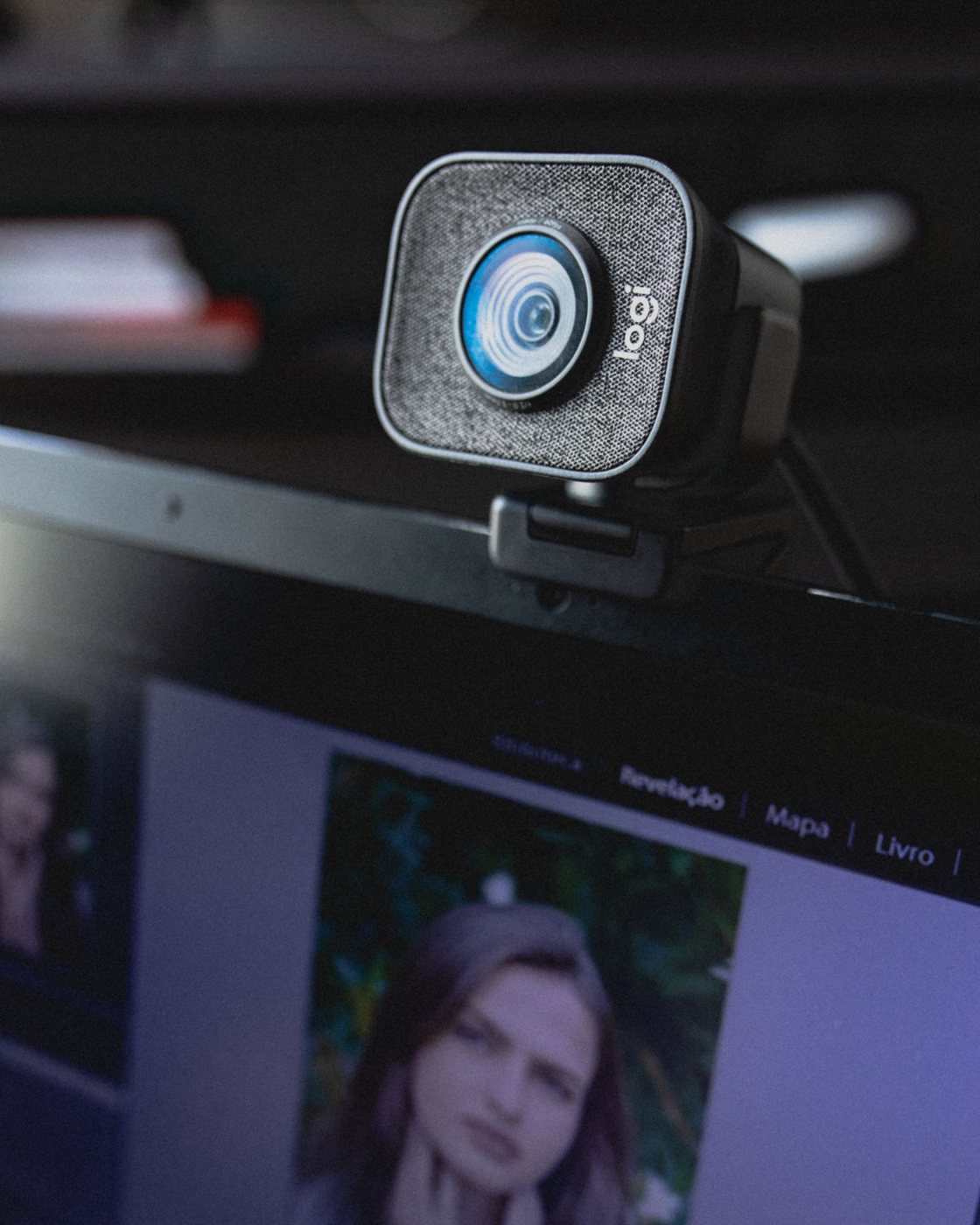
Open the camera preview before rearranging the desk. It shows what the other person can see, including the room behind you and the angle of your face. A webcam that looks neatly centered on the monitor can still produce an awkward view if the monitor is unusually high or low.
Frame the conversation
Place the camera near your natural line of sight and leave enough space around your head for ordinary movement. Avoid positioning it so close that leaning forward fills the frame unexpectedly. The exact distance depends on the camera's field of view and the crop selected in its controls.
Move the meeting window nearer the camera when possible. Looking at a participant displayed on a screen far to the side can make the conversation appear less direct. You do not need to stare continuously into the lens; the purpose is to reduce a large mismatch between the person you are watching and the camera position.
Check the background while seated and while reaching for something. A narrow framing can still reveal papers, a doorway, or another household member when you move. Do not rely entirely on blur to hide information that should not be in view.
Keep the mounting stable
Make sure the clip fits the monitor without pressing on the active screen or covering a sensor. A thin laptop lid may move when a heavy camera is attached. If using a small stand, position it where it will not be knocked while typing or handling documents.
Route the cable with slack for normal display adjustment. A cable pulled tight can tilt the camera or put pressure on its port. If an extension is needed, confirm that it supports the camera's connection requirements rather than assuming any cable will preserve every video mode.
Adjust lighting after the camera position is broadly correct. A bright window behind you can make exposure difficult. Try soft light from the front or side and inspect glasses for reflections. Logitech's webcam guidance includes exposure and framing controls, but software adjustment cannot substitute for every room change.
Finally, make a short test in the actual meeting application. Its crop or automatic framing may differ from the camera utility's preview. Save or note a useful position so that moving the monitor does not require starting from scratch before the next call.