A webcam's maximum resolution describes one capability in a longer chain. The meeting application, connection, lighting, and receiving screen all influence the picture people see. Begin with the meeting situation: one person at a desk, a small group, or a demonstration involving objects.
Choose the view before the pixel count
Field of view affects how much of the room enters the picture. A wider view can fit several people but may include more background than a solo caller wants. Check whether the camera offers adjustable framing and whether that control is available on your operating system.
Focus behavior matters when you move or show an object. Fixed-focus and autofocus designs suit different distances, and a close-up demonstration may require a camera with a suitable minimum focus distance. Try the actual object or document rather than assuming a high-resolution sensor guarantees readable detail.
Read resolution and frame rate together. The highest frame rate may be available only at a lower resolution. Also verify the required USB connection and whether a hub or extension can support the intended mode. A connector fitting into a port does not establish the full video capability.
Check the surrounding features
A privacy shutter is useful for physically covering the lens, but it may not mute the microphone. Understand the controls separately. Built-in microphones can be convenient, although their location on the monitor may be farther from your voice than a headset microphone.
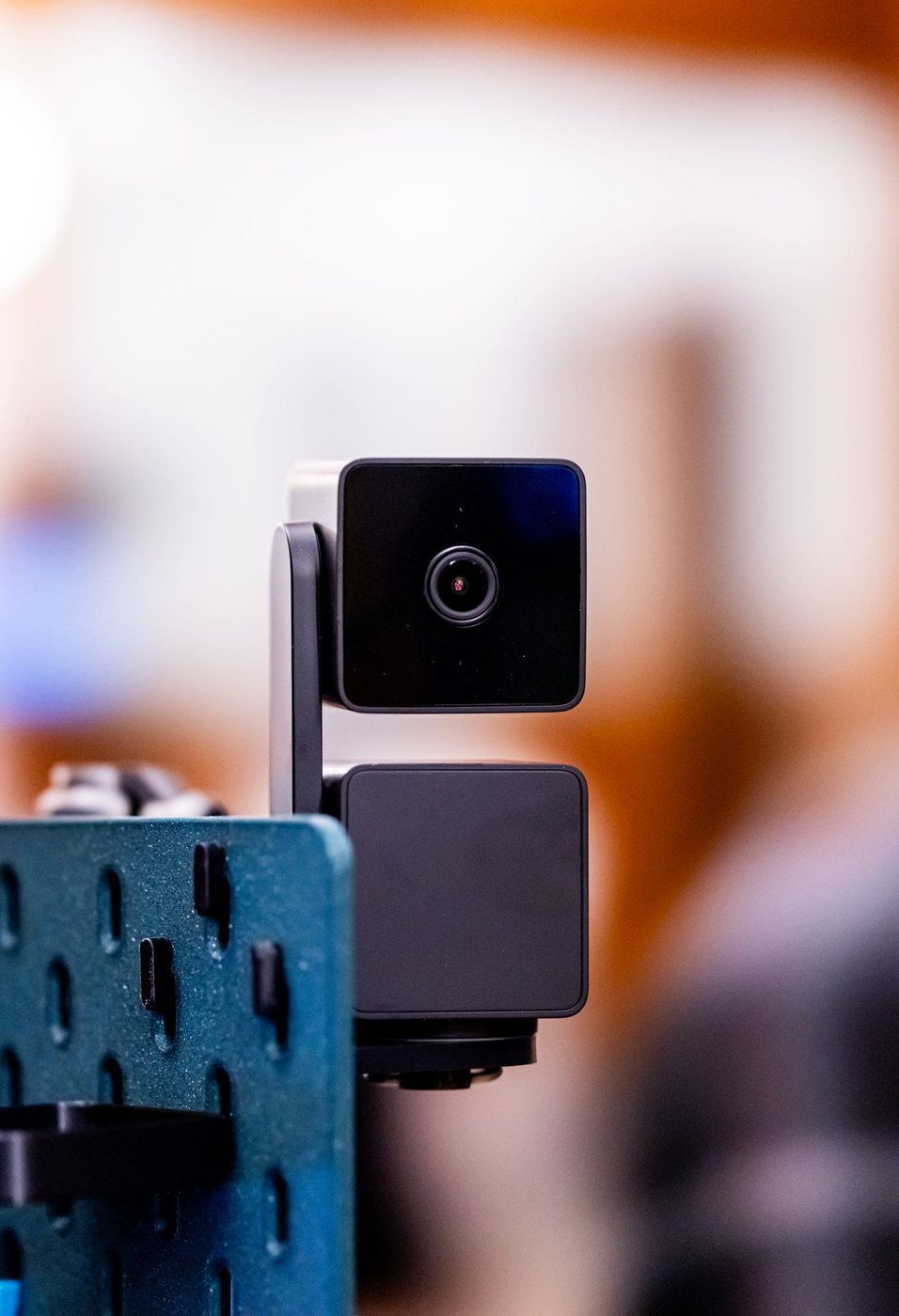
Inspect the mount for your display thickness and preferred placement. A camera with good image specifications can still be awkward if its clip blocks the screen or its cable is too short. Tripod compatibility may be helpful for an independent position, but include the stand's desk space.
Configuration software can provide exposure, crop, or other adjustments. Verify current operating-system support and whether installation is permitted on a work machine. Logitech documents these kinds of settings for supported cameras; the exact available controls vary by model and software.
Test the camera inside the meeting application you use, with normal room lighting and bandwidth. Ask whether faces and objects are clear enough for the task, not whether the preview looks dramatically sharper at full screen. If lighting or placement is the limiting factor, correcting that may improve the call more than paying for a higher maximum resolution.
A comparison session that reveals the differences
Use the same seat, light, and application for each camera. Speak normally, turn slightly, and hold up an object if that is part of your calls. Watch for focus hunting, abrupt exposure changes, and a crop that removes material you intend to show. These behaviors can matter more to a meeting than the detail visible in one frozen frame.
Next, inspect the picture from another device or an approved recording of the call. The local preview may use different processing or resolution from the transmitted video. If the improvement vanishes in the actual meeting, ask whether the application or connection is the constraint before buying a more expensive camera.
Include a low-light trial only if that represents your real use. It is usually more informative to compare cameras in a room you can maintain than to reward a model for coping with a lighting problem you could easily correct.