A camera that does not appear in a meeting app may be physically blocked, selected incorrectly, denied permission, or unavailable through its current connection. Start with what the app actually reports. A black image, an absent device, and a permission warning are different clues.
Look for a privacy shutter or hardware camera switch. Check its documented position without forcing it. Some computers use a key combination or manufacturer setting to disable the camera. Confirm the controls for the specific model rather than assuming the indicator light tells the whole story.
Open a trusted local camera application or the operating system's camera test where available. If the camera works there but not in the meeting application, focus on app selection and permissions. If it fails everywhere, examine the device connection and system-level access before changing meeting settings repeatedly.
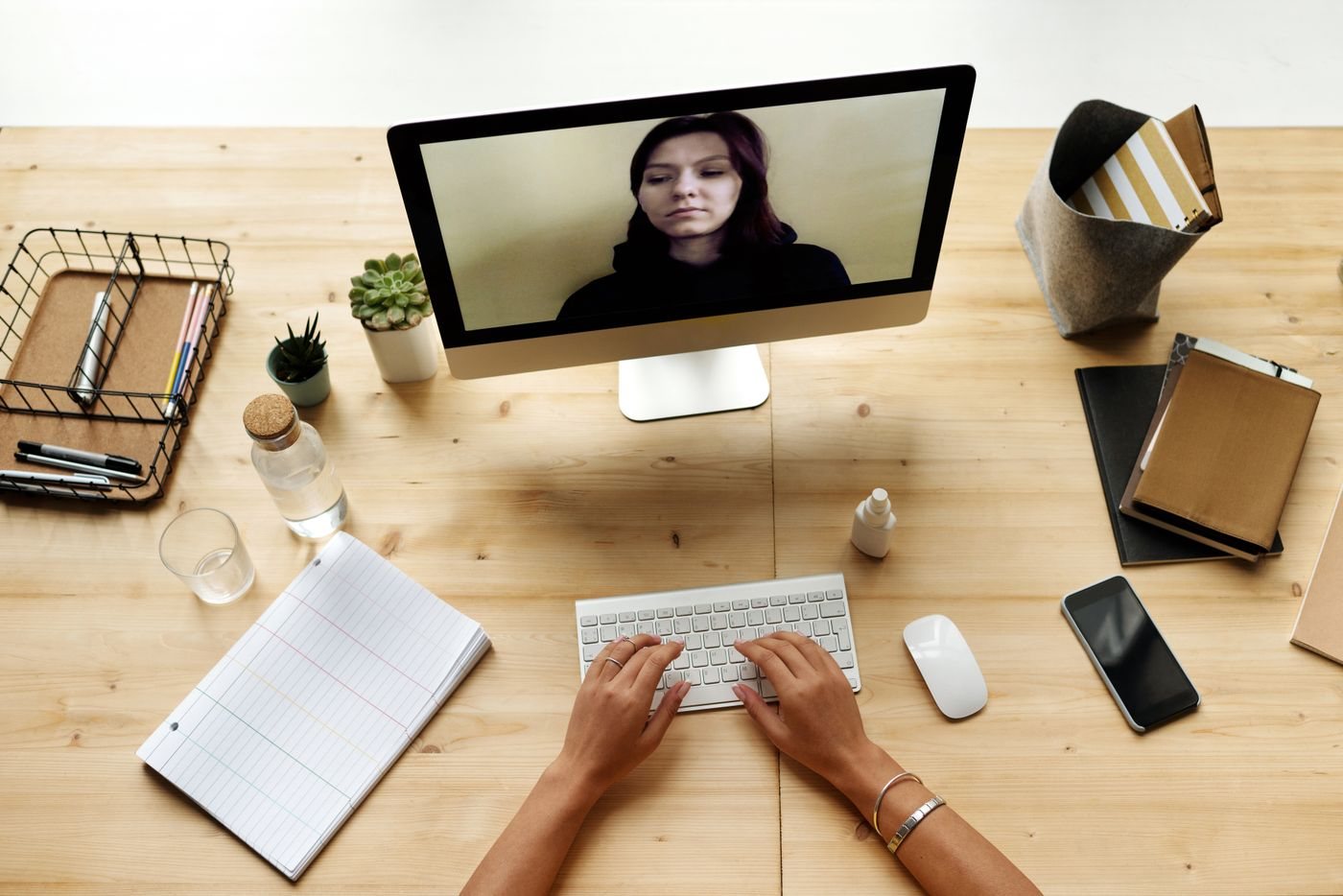
In the meeting app, select the intended camera by name. A computer may list a built-in camera, an external camera, and virtual cameras installed by other software. Close another app that may already be using the camera, after saving any work. Then retest the intended application.
Microsoft's camera guidance includes checking privacy permissions and the physical connection. On a managed device, an administrator can control access, so a disabled setting may require organizational support. Do not circumvent that policy or install unknown camera utilities to bypass it.
For an external camera
Check its cable and the supported host port. If it is connected through a hub or dock, try an appropriate direct connection to establish a baseline. Use the supplied or documented compatible cable; power alone does not prove the data path is suitable.
Read any driver or companion-software requirement from the camera manufacturer's support page. Match the exact model and operating system. A package for a similar-looking camera can be the wrong choice, and third-party driver sites add unnecessary uncertainty.
Once the image appears, check framing and the intended resolution in the actual app. Make a short private test before an important call. Avoid sharing screenshots that reveal private surroundings, account details, or other people without permission.
If the problem remains, record the camera model, app, system version, exact message, and results of the local and direct-connection tests. That concise evidence helps distinguish a device fault from a permission or application problem without repeatedly buying replacement cameras.