The guide library
Care & troubleshooting
Observe the problem, check the relevant instructions, and keep useful records. Guides to maintenance, backups, and measured troubleshooting.
 Care & troubleshooting
Cleaning a screen without guessing at the finish
Identify the screen finish and follow its cleaning instructions before applying any liquid or product.
 Care & troubleshooting
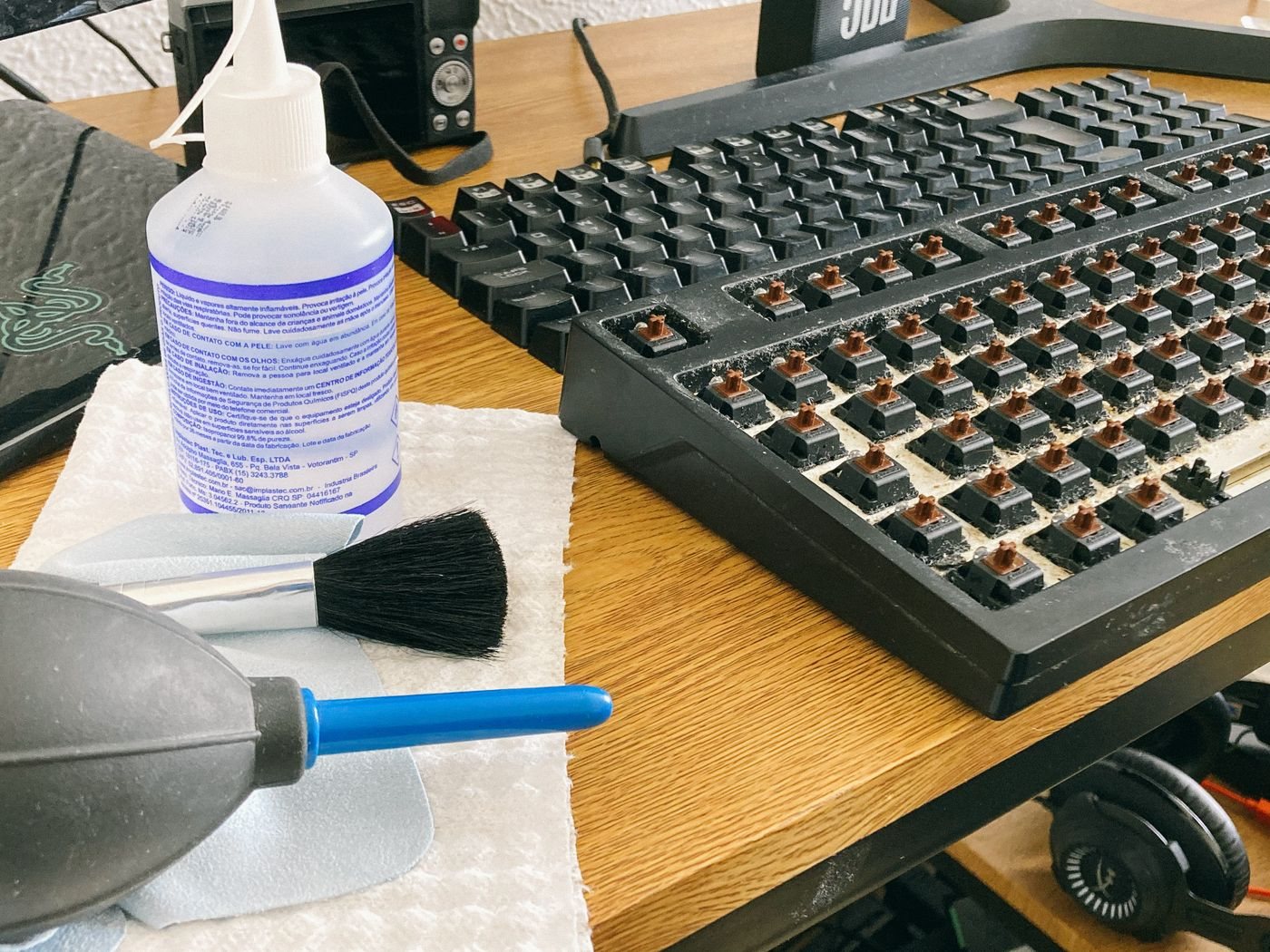
Cleaning a keyboard around its construction
Choose a keyboard cleaning method that respects its switches, keycaps, coatings, and battery design.
 Care & troubleshooting
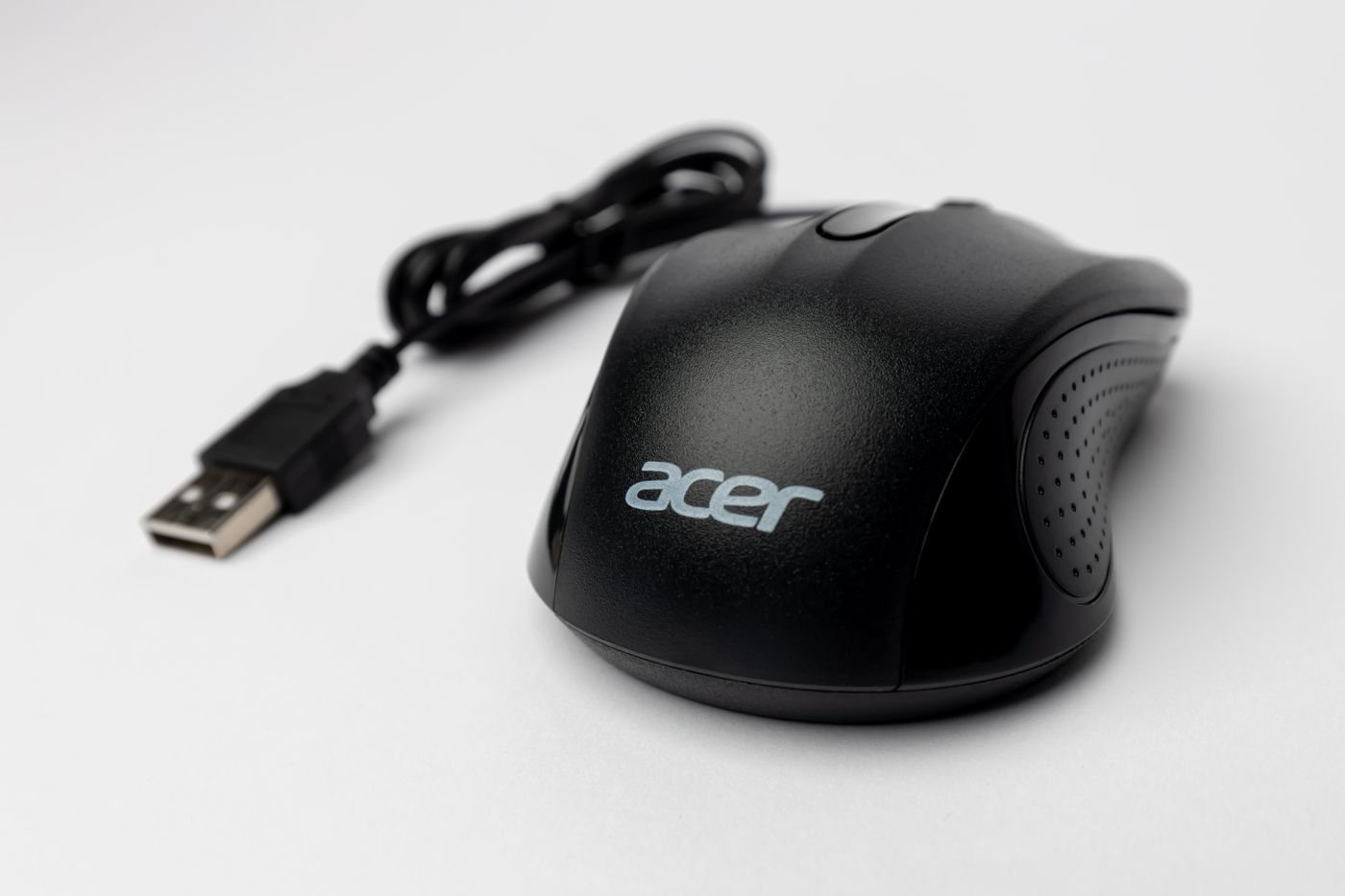
Cleaning a mouse and checking its feet
Clean the mouse exterior and inspect its glide surfaces without treating every tracking problem as dirt.
 Care & troubleshooting
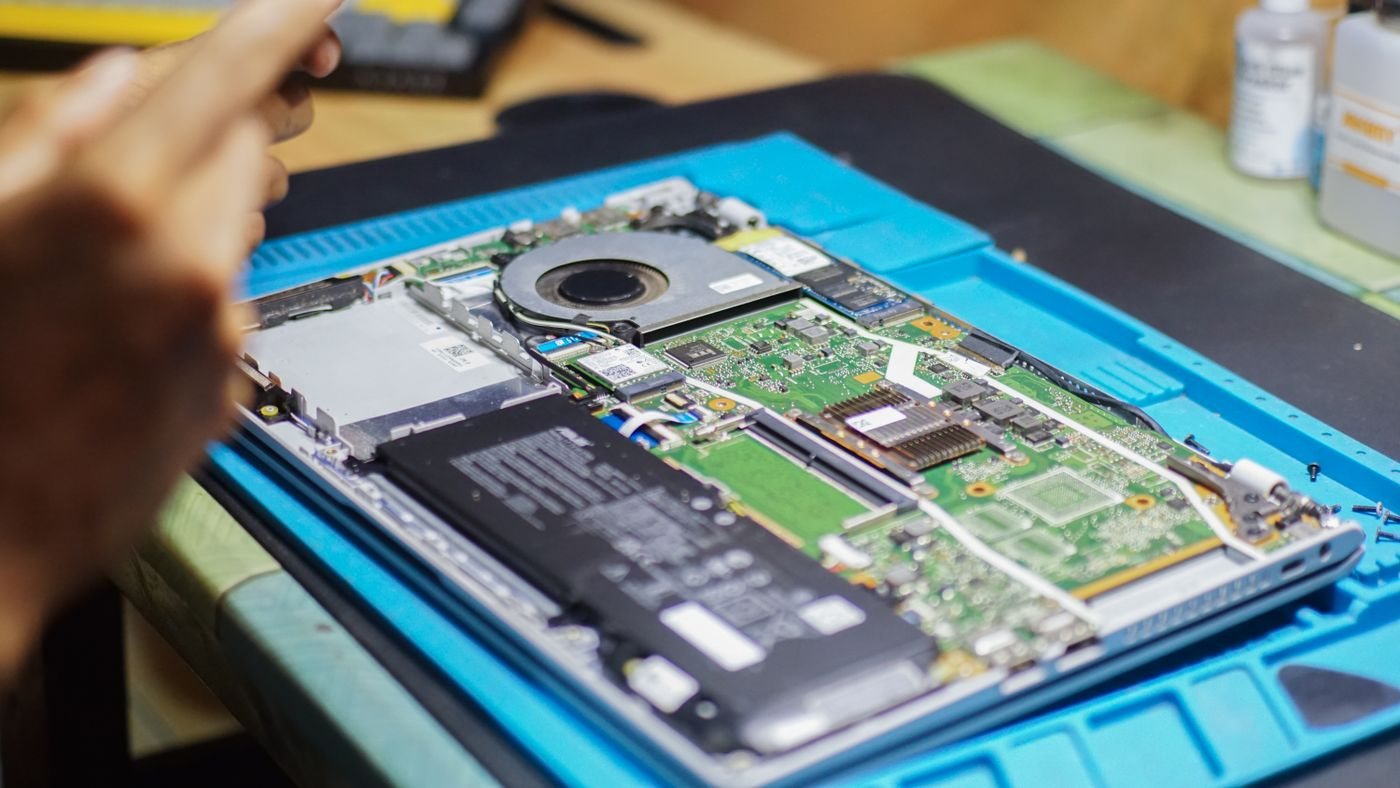
Keeping laptop ventilation paths clear
Keep intake and exhaust paths open and use model-specific instructions for any cleaning.
 Care & troubleshooting
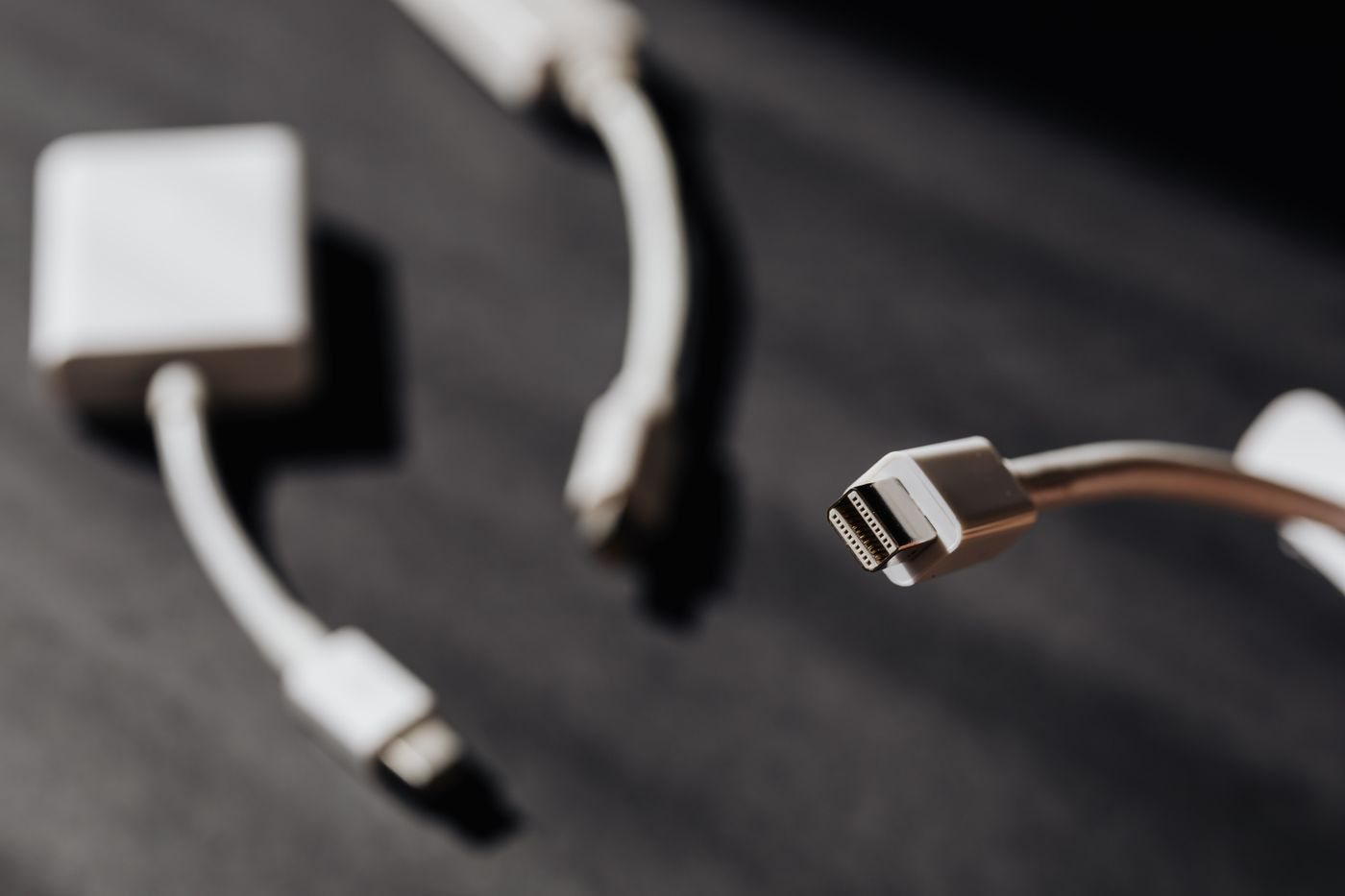
Inspecting cables before reusing them
Check cable jackets, connectors, and strain relief before putting a stored lead back into service.
 Care & troubleshooting
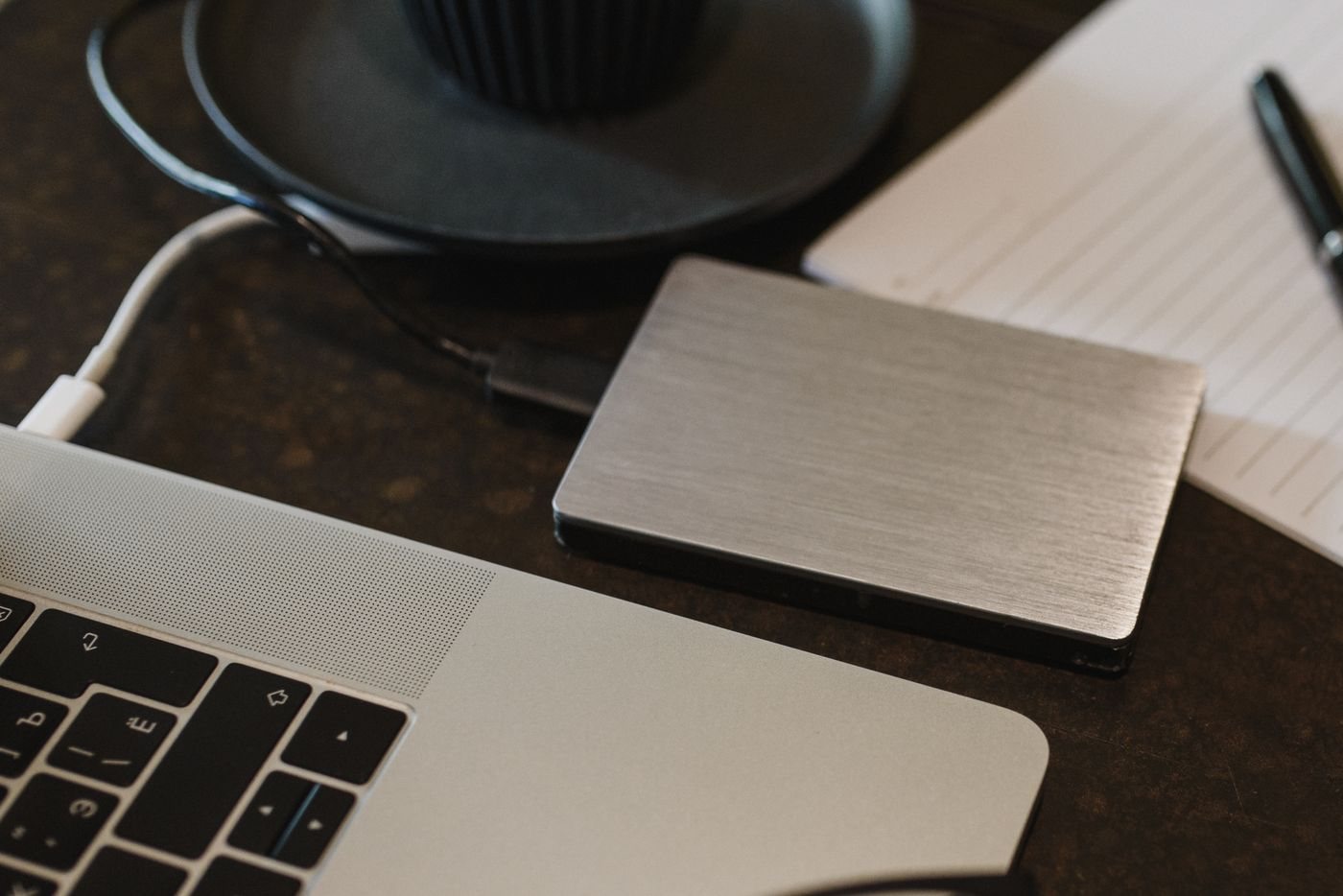
Checking that a backup can be restored
Practice recovering representative files to a separate location before you need the backup in an emergency.
 Care & troubleshooting
Planning updates around important work
Schedule system and application updates with time for backups, restarts, and a short workflow check.
 Care & troubleshooting
Clearing storage without losing useful files
Review what occupies storage, verify important copies, and remove files with a clear reason.
 Care & troubleshooting
Making useful notes about a slow computer
Describe when a computer slows down and collect a few observations before changing settings or buying hardware.
 Care & troubleshooting
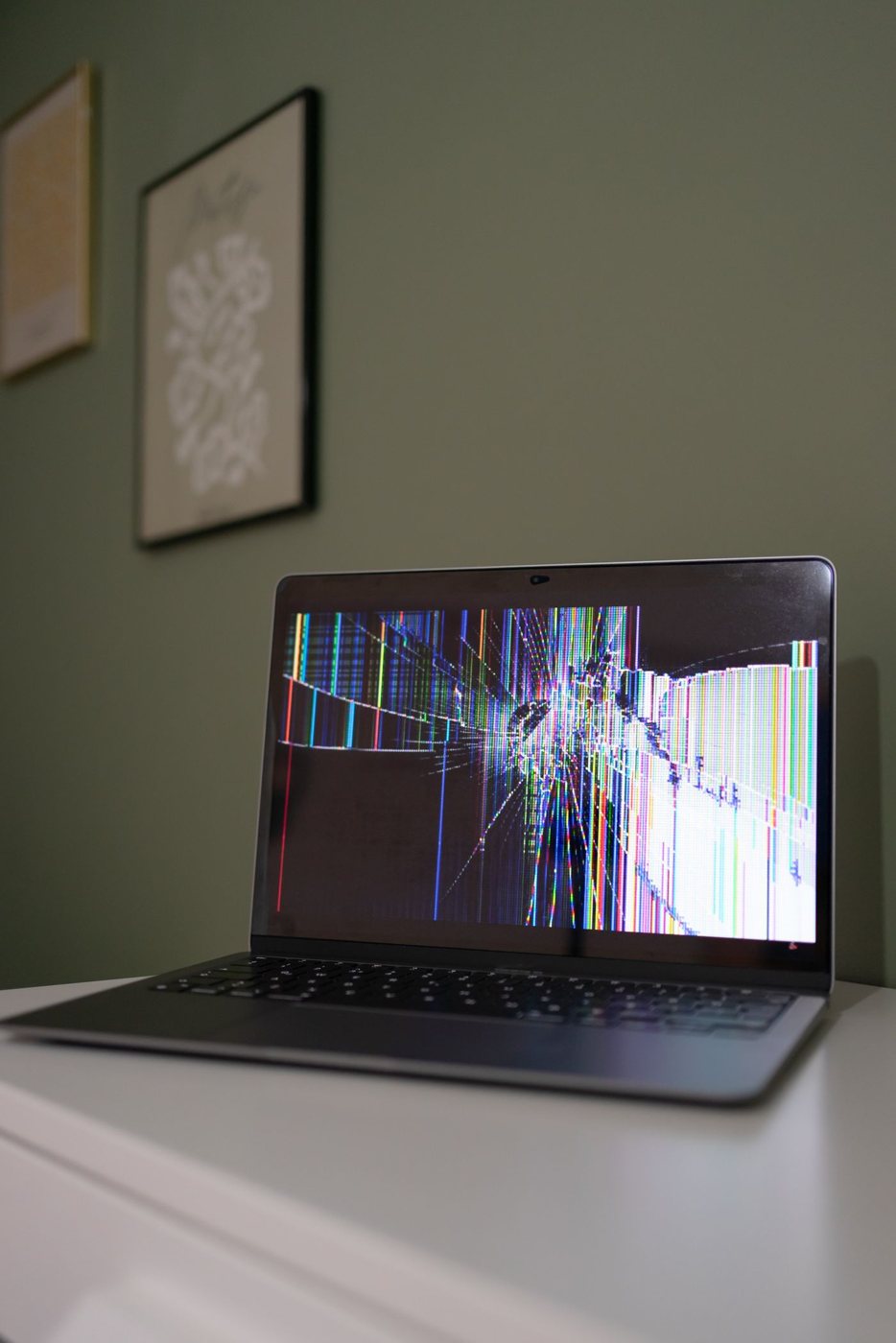
Checking a missing display one step at a time
Separate monitor power, input selection, signal compatibility, and software settings when a screen stays blank.
 Care & troubleshooting
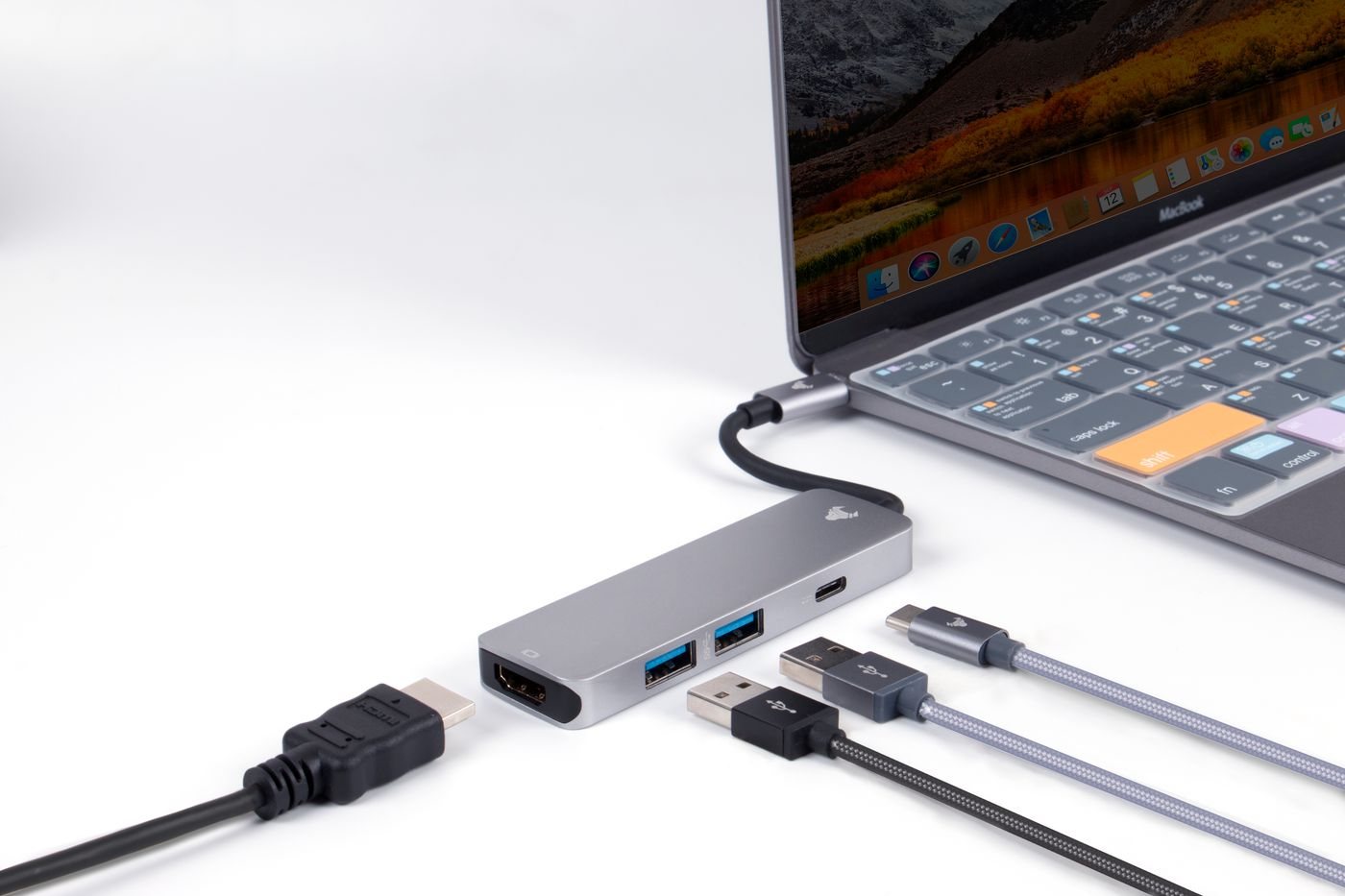
Tracing a USB device that is not detected
Find out whether a USB problem concerns power, recognition, software access, or a specific connection path.
 Care & troubleshooting
Checking where computer audio is going
Check the system, application, and physical output before treating missing sound as a hardware failure.