Storage cleanup is easier when you begin with categories instead of deleting the largest folder you can find. Open the operating system's storage view and identify whether applications, personal files, downloads, temporary items, or another category accounts for the space. The result helps you choose an action that has a purpose.
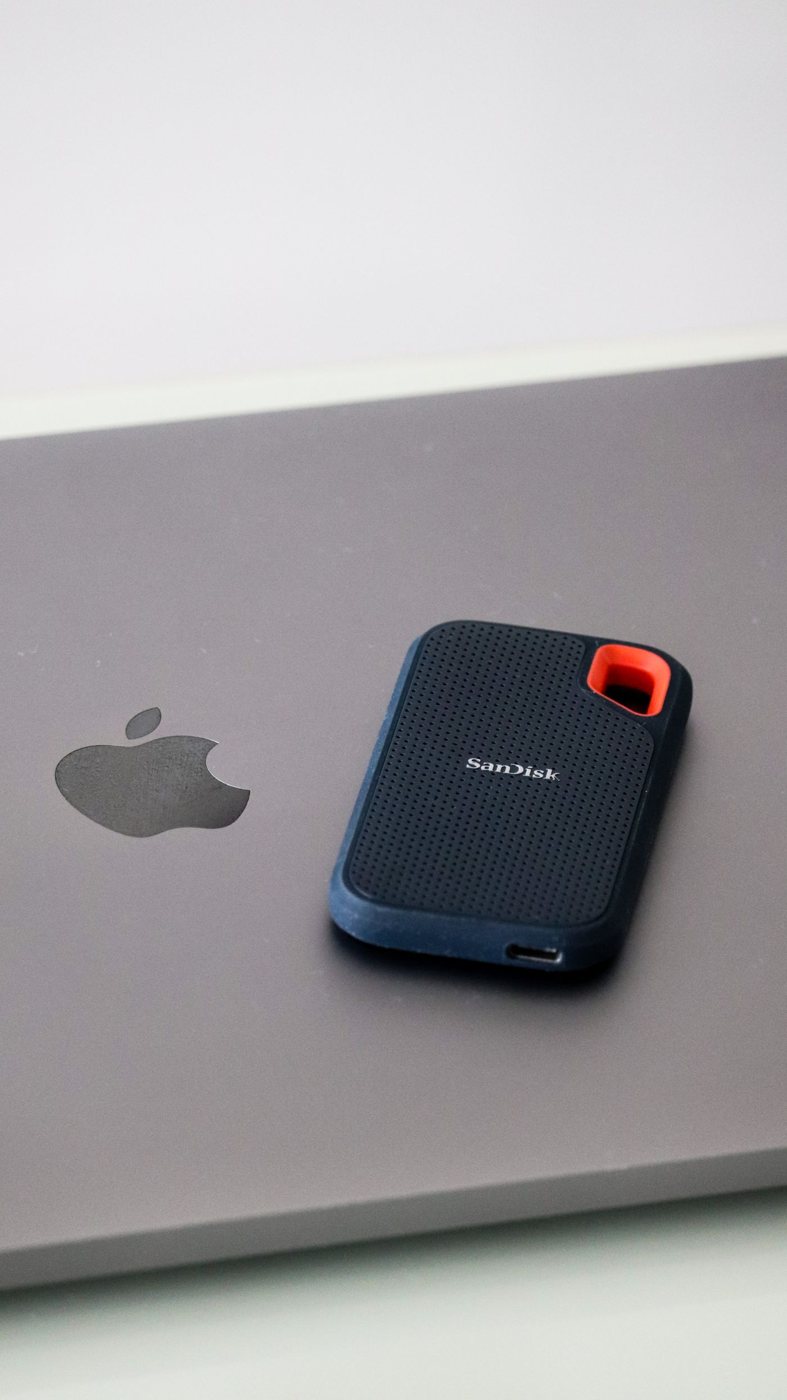
Before deleting unique work, verify that it is backed up or intentionally disposable. Moving a folder to an external drive and deleting the original creates one remaining copy, not an automatic backup. Decide whether that is appropriate for the material before making the move.
Review the obvious candidates
Downloads often mix installers with documents that have never been filed elsewhere. Sort and inspect them rather than emptying the folder indiscriminately. Old installers may be replaceable, but a signed document or an exported project may not exist anywhere else. Check filenames, dates, and contents when the role is unclear.
Use an application's uninstall process for software you no longer need. Deleting its folder manually can leave settings or dependencies behind. Avoid removing unfamiliar system folders just because they are large. If a category remains unexplained, investigate with official documentation before treating it as waste.
Temporary-file tools can be useful, but review the selected categories. Microsoft's Storage Sense documentation describes configurable cleanup behavior; its presence does not mean every setting matches your preferences. Read any option affecting downloads, deleted files, or cloud content before enabling automation.
Understand synchronized files
A cloud-synchronized folder requires particular care. Deleting a file may propagate that deletion to other devices, while a service's “free up space” function may only remove a local copy. Verify the actual command and whether the online copy is available. Keep files needed offline marked appropriately according to the service instructions.
After cleanup, check the available space and open important projects. If you relocated a library, update its application through the supported method and verify linked files. Do not empty the trash immediately if you still need to confirm a substantial reorganization.
Set a simple habit for the category that caused the problem. That might be reviewing downloads monthly or moving completed projects into a documented archive with a second copy. Avoid chasing an empty disk as a goal. The useful outcome is enough working space and a file arrangement you understand, without sacrificing the material you intended to keep.