A blank external screen is not a single diagnosis. First observe what the monitor itself can show. Is its power indicator on? Can you open its on-screen menu? Does it report “no signal,” remain completely dark, or briefly display the computer before losing the picture? Write down the behavior before changing connections.
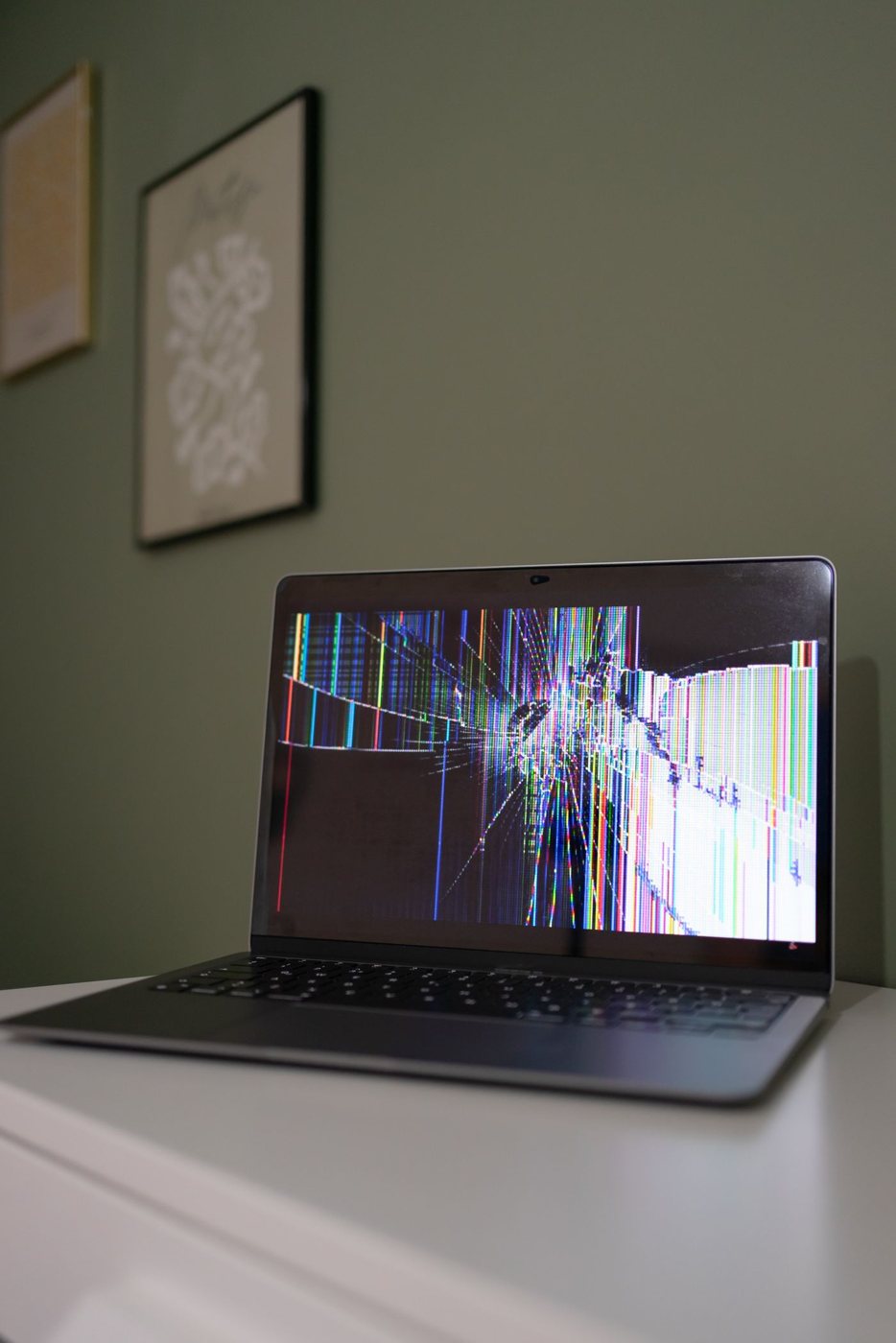
If there is physical damage, liquid exposure, an unusual smell, or sparking, stop and address that condition. The checks below are for intact equipment with an ordinary missing-picture problem, not for testing whether damaged electrical hardware still works.
Establish the monitor side
Confirm that the monitor has its required power connection and that its selected input matches the socket in use. A screen connected to HDMI 2 may remain blank while HDMI 1 is selected. Use the monitor's manual if its controls are unfamiliar; repeated presses without knowing the menu can change unrelated settings.
Check the cable at both ends while following the equipment instructions. Look for a loose plug or visible damage without forcing it. If a cable has a direction marking, make sure its source end points toward the computer. Do not treat a cable's charging success as evidence that it can carry video.
Reduce the connection path
Remove optional intermediaries where the equipment supports a direct connection. A dock, KVM switch, adapter, and extension create several possible limits. Microsoft's external-monitor troubleshooting guidance starts with this kind of basic hardware simplification. Use one display and a known-compatible cable to establish a baseline.
Confirm that the computer's selected output supports the intended connection. A USB-C display adapter may require video capability on that specific host port. An adapter also has a source direction and supported display modes. Review the model documentation rather than buying a second copy of the same uncertain adapter.
Check the computer's display choice
If the built-in screen works, open the operating system's display settings and inspect the external-display arrangement. Confirm whether the intended action is duplication or extension. On Windows, the projection options can also be reached with Windows+P. Avoid making large changes to an inaccessible display arrangement without a way to revert them.
Try a documented mode supported by the entire path. A picture at a lower mode but failure at the desired resolution or refresh rate is useful evidence about capability or connection quality. It does not automatically prove that the panel is faulty.
If a known-working alternate cable or display is available, change one item and record the result. Do not replace several pieces at once and lose the comparison. Check official driver or firmware guidance only after identifying the model and current setup; arbitrary driver packages complicate the diagnosis.
For support, provide the computer, monitor, dock or adapter models, cable route, selected input, and the exact point at which the picture disappears. Include whether the monitor menu works and whether a simpler connection succeeded. That description narrows the problem far more than a photograph of a black screen alone.