A laptop needs the ventilation arrangement its design expects. Before buying a cooling accessory or opening the case, look at where the manufacturer places the intake and exhaust openings. Vents can be on the underside, sides, rear, or near the hinge, and their position changes how the computer should sit on a desk.
Use a firm, stable surface that does not cover those openings. Bedding, a cushion, or a thick fabric cover can obstruct the underside even when the screen remains upright. Apple's safety guidance for its laptops and adapters emphasizes suitable ventilation; use the equivalent operating guidance for your own model.
Inspect the complete position
Look beneath the computer with it shut down and disconnected. Check whether a stand, adhesive accessory, protective shell, or cable bundle blocks a vent. Move the display through its normal angle and see whether anything crowds the rear exhaust path. A stand should support the laptop securely without defeating the airflow layout.
Keep papers and other objects away from the exhaust. If the laptop sits in a narrow shelf, verify that the enclosure provides the clearance required by the manufacturer. Do not assume an external fan compensates for a blocked intake or a cramped cabinet.
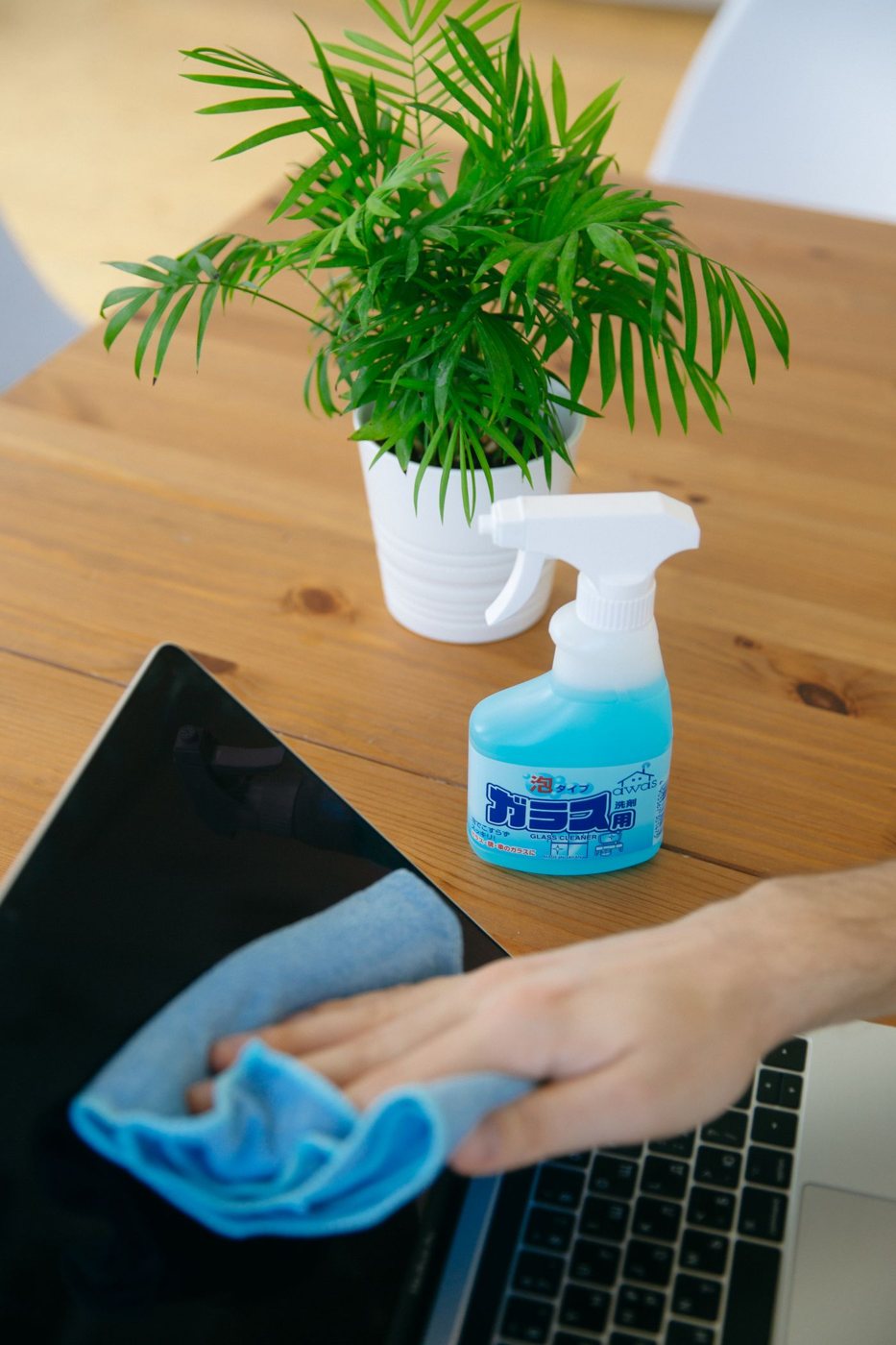
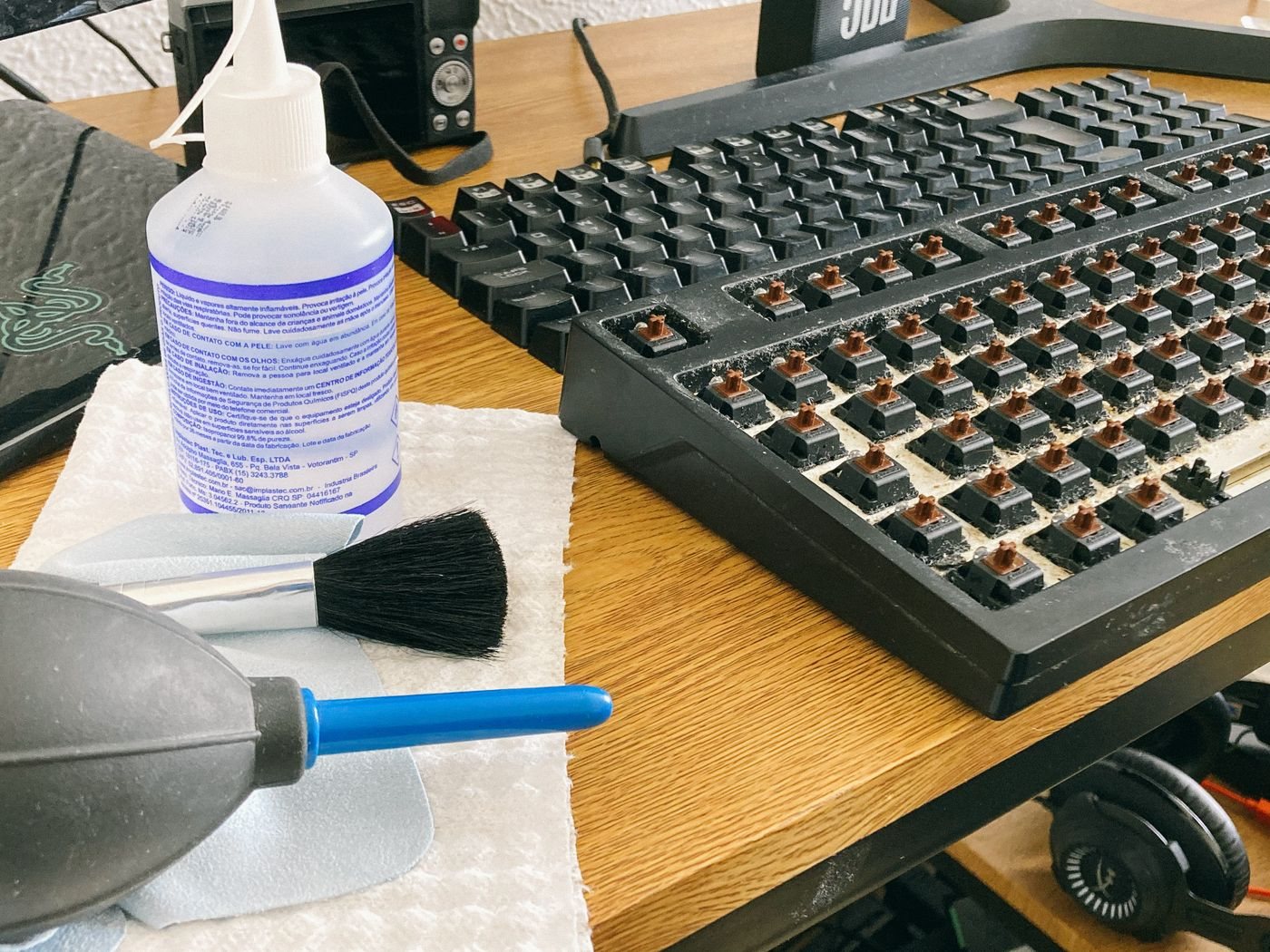
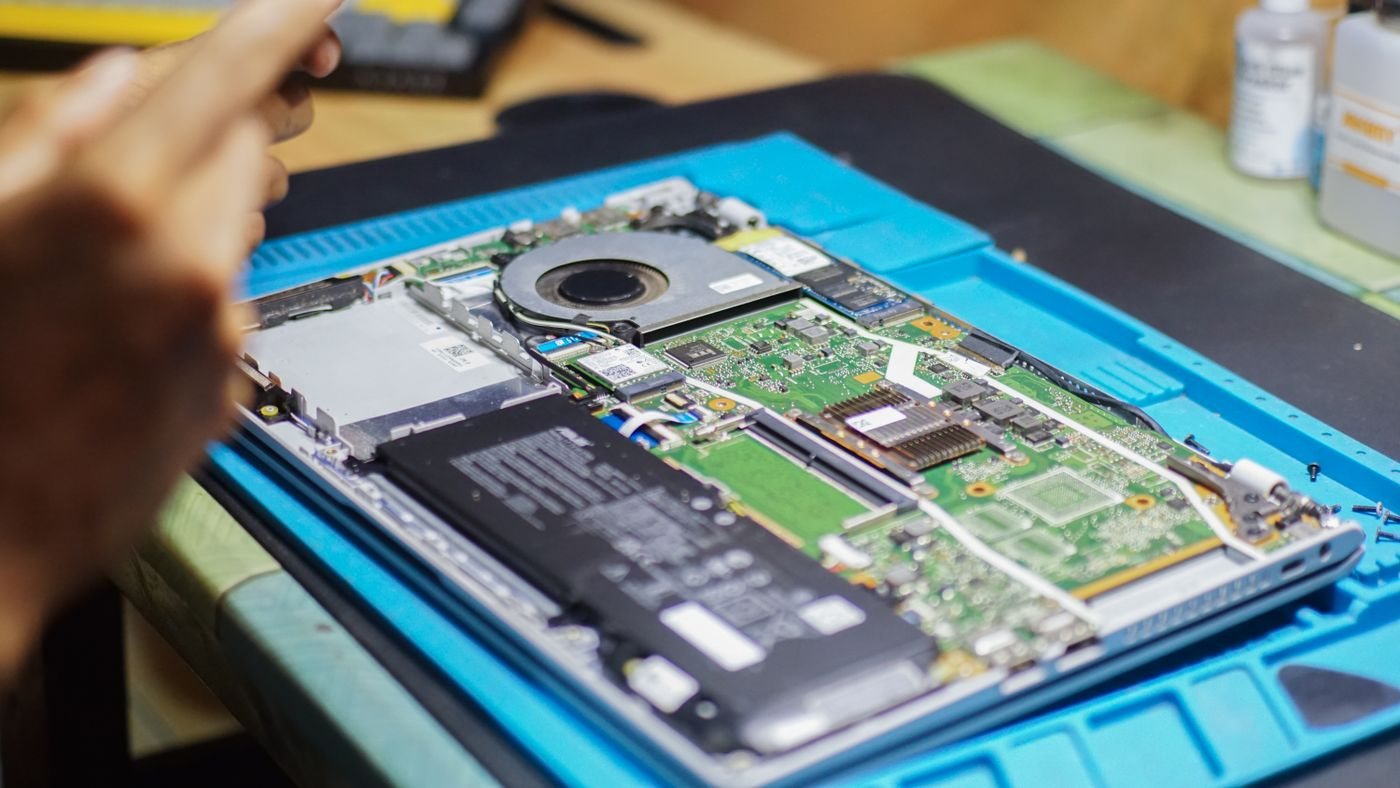
Dust visible on an exterior grille may be removable using the approved cleaning procedure. Do not push tools through the grille or assume that blasting air into every opening is harmless. Follow model-specific instructions for compressed air if it is permitted, and avoid opening the case unless you are following an appropriate service procedure with the required skills.
Observe behavior before making changes
Note whether fan noise or reduced responsiveness occurs during a demanding task, at idle, or only in a particular location. Record the surface, room conditions, and connected power arrangement. A warm computer under load is different from a sudden change accompanied by warnings or shutdowns.
If the computer repeatedly overheats, shuts down, smells unusual, or has a distorted case, stop using it and seek service advice. A bulging case can indicate a battery problem rather than blocked ventilation, and should not be pressed back into place.
After correcting an obvious obstruction, use the computer normally and see whether the symptom changes. Keep the result in your notes. Clearing an airflow path is a useful maintenance step, but persistent heat problems deserve diagnosis instead of a succession of improvised cooling fixes.