A laptop that says “plugged in” but does not gain charge is not necessarily suffering the same fault as one that never recognizes its adapter. Begin by noting the exact status message, battery level, and whether the computer is operating, asleep, or shut down when the issue occurs.
Before testing, inspect the accessible equipment. Stop using a device with a swollen case, damaged cable, burning smell, unusual heat, or liquid exposure. Do not open a charger or press a bulging laptop case flat. Those conditions require manufacturer or qualified service guidance rather than ordinary charging checks.
Record the complete power route
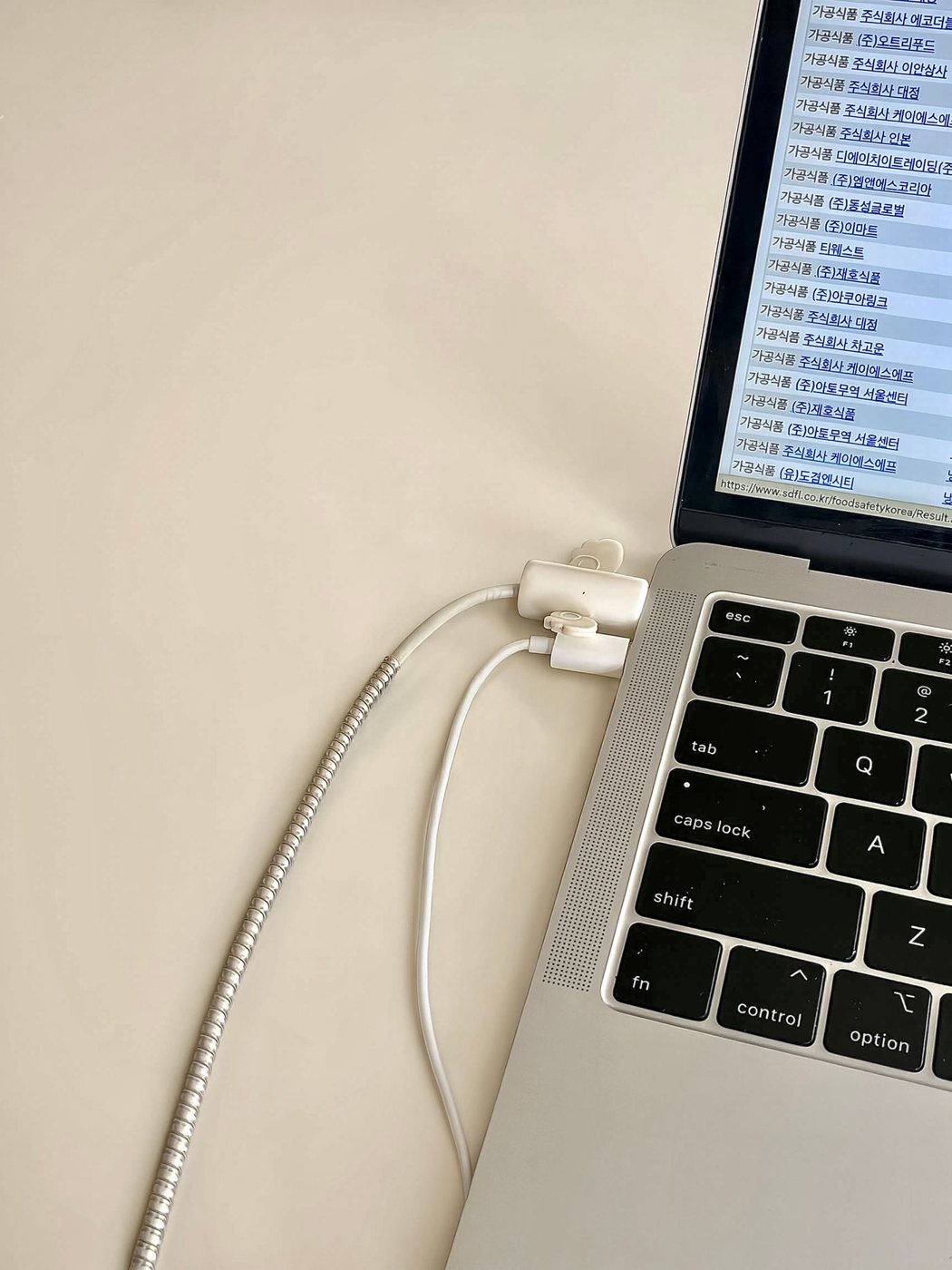
Write down the adapter model and output information, cable, computer port, and any dock or multiport charger between the wall and laptop. Note the other devices attached to the charger. Shared output can change when another device is connected, so “same charger” may still describe a different arrangement.
Compare the setup with the computer manufacturer's requirements. If a dock is involved, find its host charging output, not just the rating of its power brick. If the laptop has several similar ports, check which accept charging. Keep the manufacturer's original arrangement as a useful reference when available.
Check for documented battery-care settings or charging limits. A system may intentionally pause charging under some conditions. Read the applicable status explanation before deciding that a stable percentage proves a fault. Avoid disabling battery features indiscriminately just to make the number rise.
Make a controlled comparison
With intact compatible hardware, observe whether the issue occurs using the documented direct charging arrangement instead of the dock. Change only one element at a time. Apple notes that adapter warmth can be normal but also documents ventilation and service steps for adapters that repeatedly stop charging; consult the equivalent guidance for your model.
Do not scrape ports with metal objects or wiggle a connector until it temporarily works. A connection that requires pressure or a particular angle should be inspected by support. Similarly, a damaged or loose mains connection is not a place for repeated experiments.
Timing can be particularly revealing. Note whether charging stops at the same percentage each time, whether the laptop loses charge only during demanding work, and whether disconnecting a second device changes the message. These are observations to give support, not proof of a particular cause. Avoid repeating a stress test if the computer or adapter becomes unusually hot.
If a service appointment is needed, ask which components to bring. A technician may need the adapter, host cable, or dock involved to reproduce the issue. Mark them clearly and keep a copy of the connection notes. Bringing only the computer can omit the part of the arrangement where the symptom appears.
Keep a short timeline with the status message, workload, connected devices, and result of each safe comparison. Include whether the problem began after an update, drop, or equipment change. This gives support a way to distinguish a charging limit, insufficient power allocation, cable issue, or hardware fault without relying on a vague report that the battery is bad.