DisplayPort connections become easier to plan when you identify the source and destination first. The computer sends the picture; the monitor receives it. Record the exact output and input connectors, then add the resolution and refresh rate you want to use. This simple map prevents buying an adapter that fits the sockets but converts in the wrong direction.
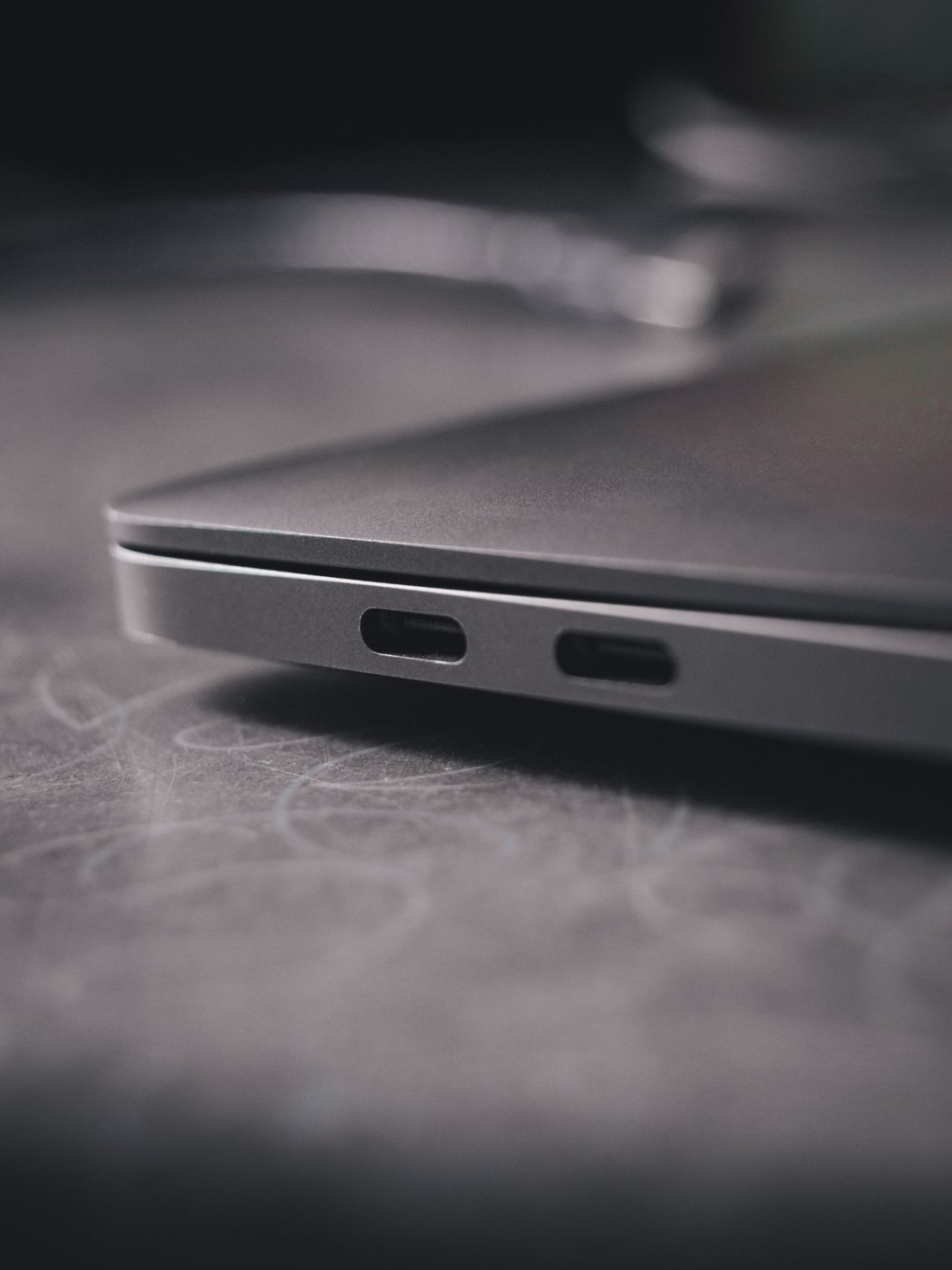
A direct DisplayPort connection is one possibility. USB-C carrying DisplayPort is another, but the computer must support that capability on the selected port. VESA advises checking device documentation rather than assuming every USB-C connection can output video.
Adapters change more than the plug
An adapter from one display interface to another can require signal conversion. The reverse route may need a different product. Read the described source and display sides explicitly, including whether the adapter needs additional power. A matching pair of connectors does not establish bidirectional operation.
When comparing adapters, find the supported display modes and any limitations affecting your intended features. A listing that mentions a resolution without its refresh rate leaves an important gap. The computer, adapter, cable, and monitor input all need to support the desired arrangement.
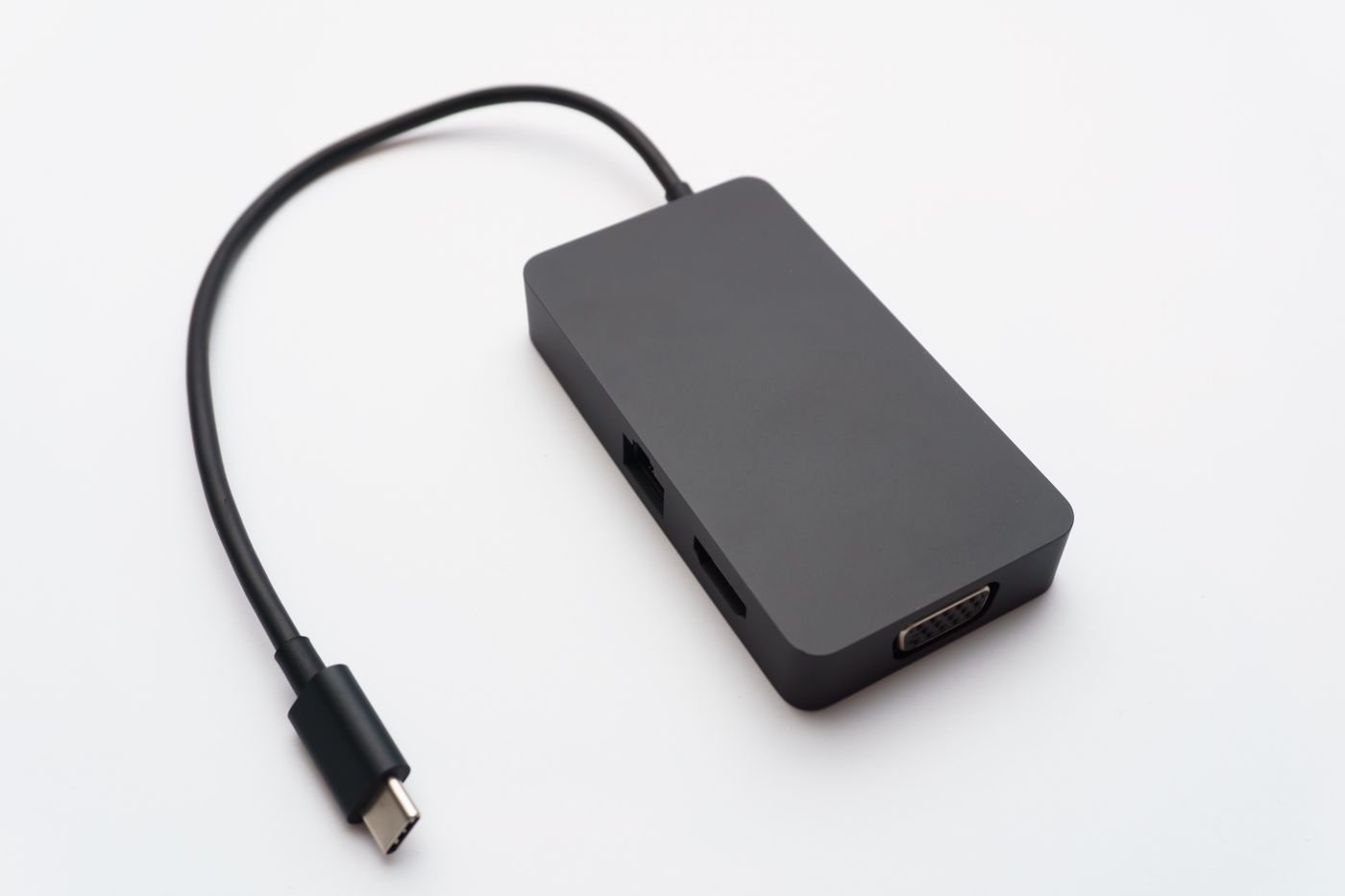
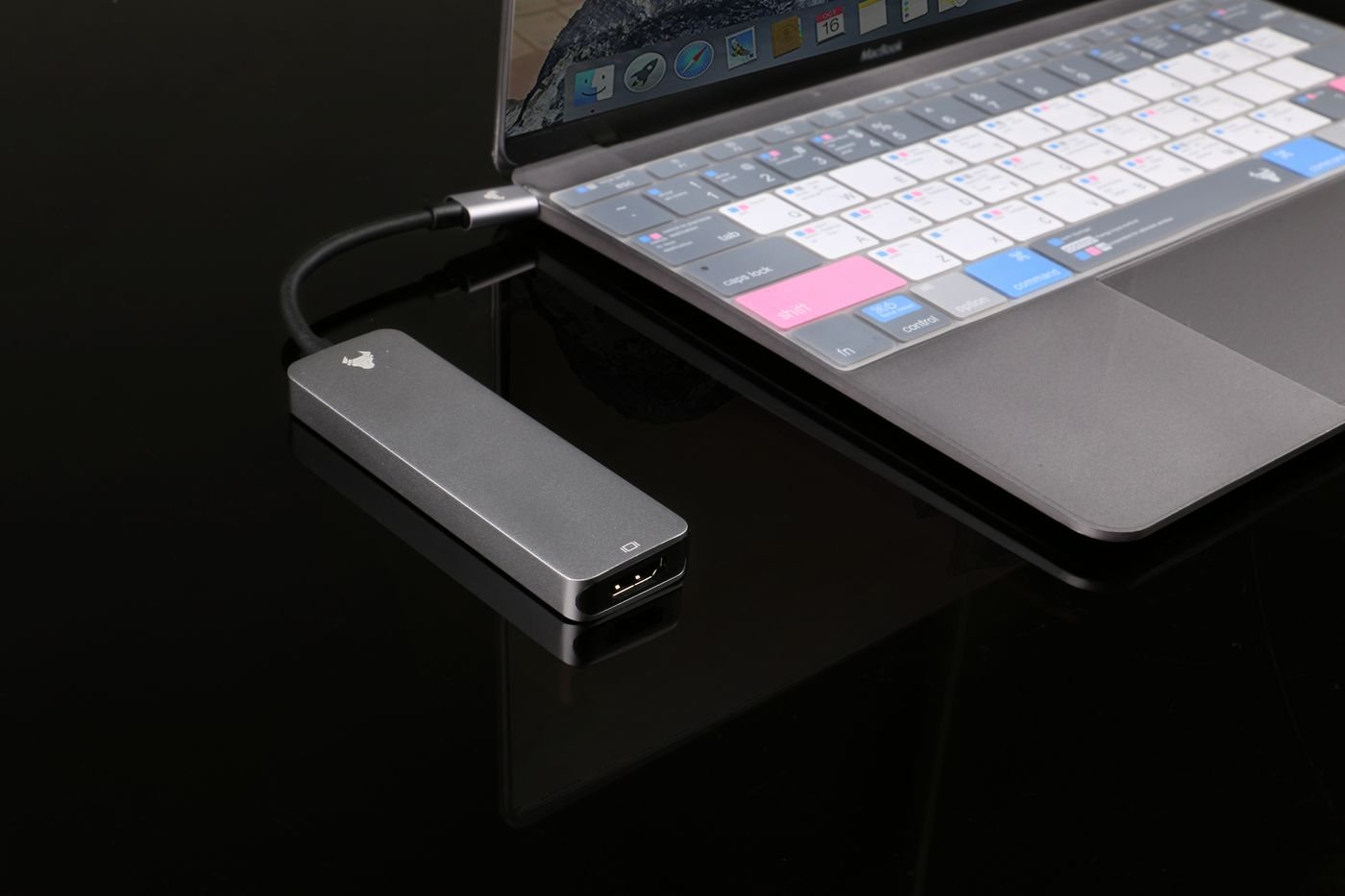
For USB-C to a DisplayPort monitor, a suitable adapter cable can keep the connection simple. Check the manufacturer's requirements and the cable's documented capabilities. If a dock sits between them, include its display limits as another part of the map. Adding a dock does not erase restrictions in the computer's graphics hardware or operating system.
Verify the picture you actually need
After connecting, select the corresponding input on the monitor and check the display settings on the computer. Confirm the resolution, refresh rate, and whether the desktop is extended or duplicated. A visible picture is only the first check; the system may have selected a fallback mode.
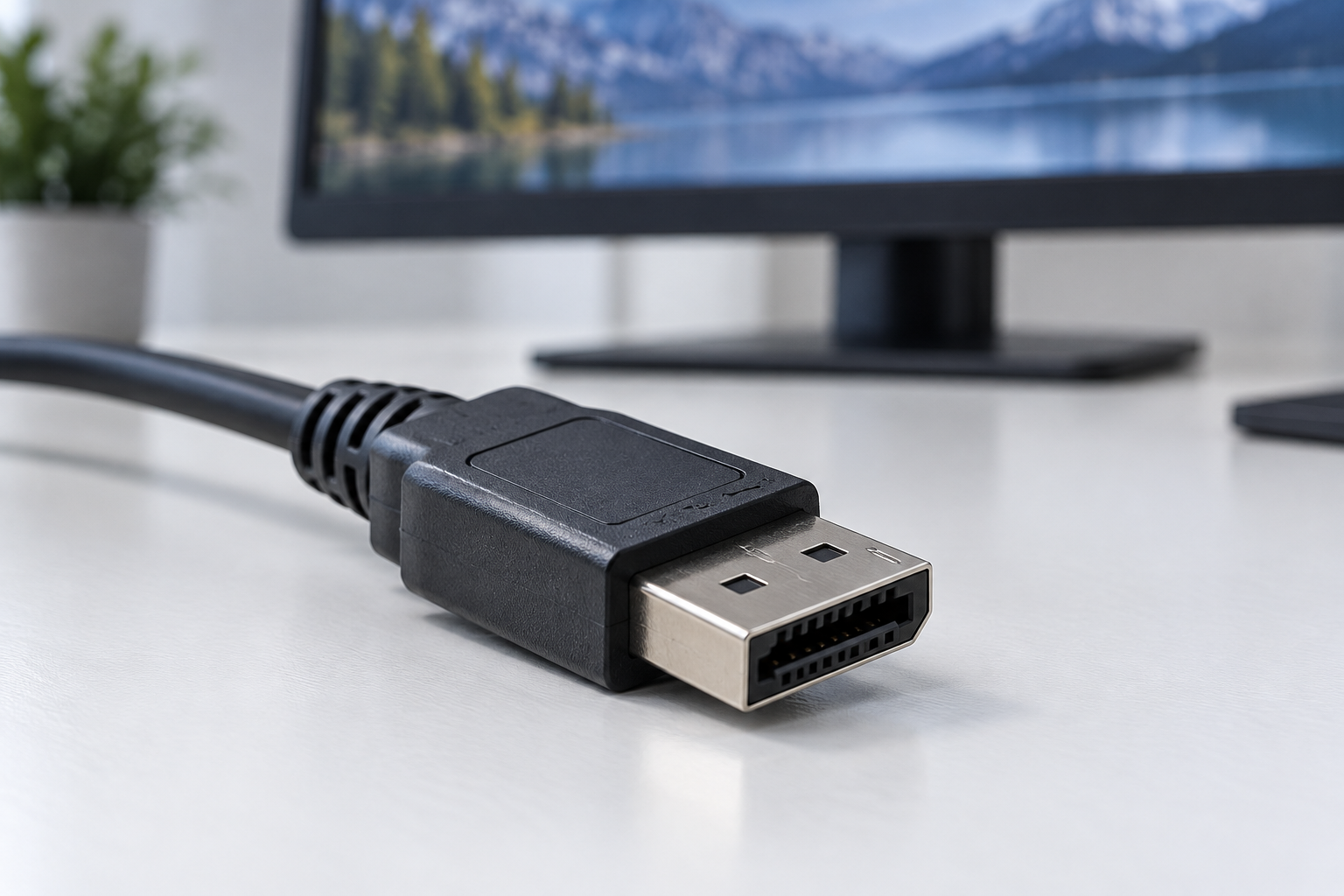
Move the monitor through its normal adjustment range and make sure the cable does not tug at either socket. If the connector has a release latch, use it before removing the plug. Do not pull the cable by its jacket or force a connector that does not align.
For intermittent behavior, return to the shortest known-compatible path and test one display. Record which cable, port, and mode work. That baseline gives you a useful comparison when reintroducing an adapter, switch, or second monitor.