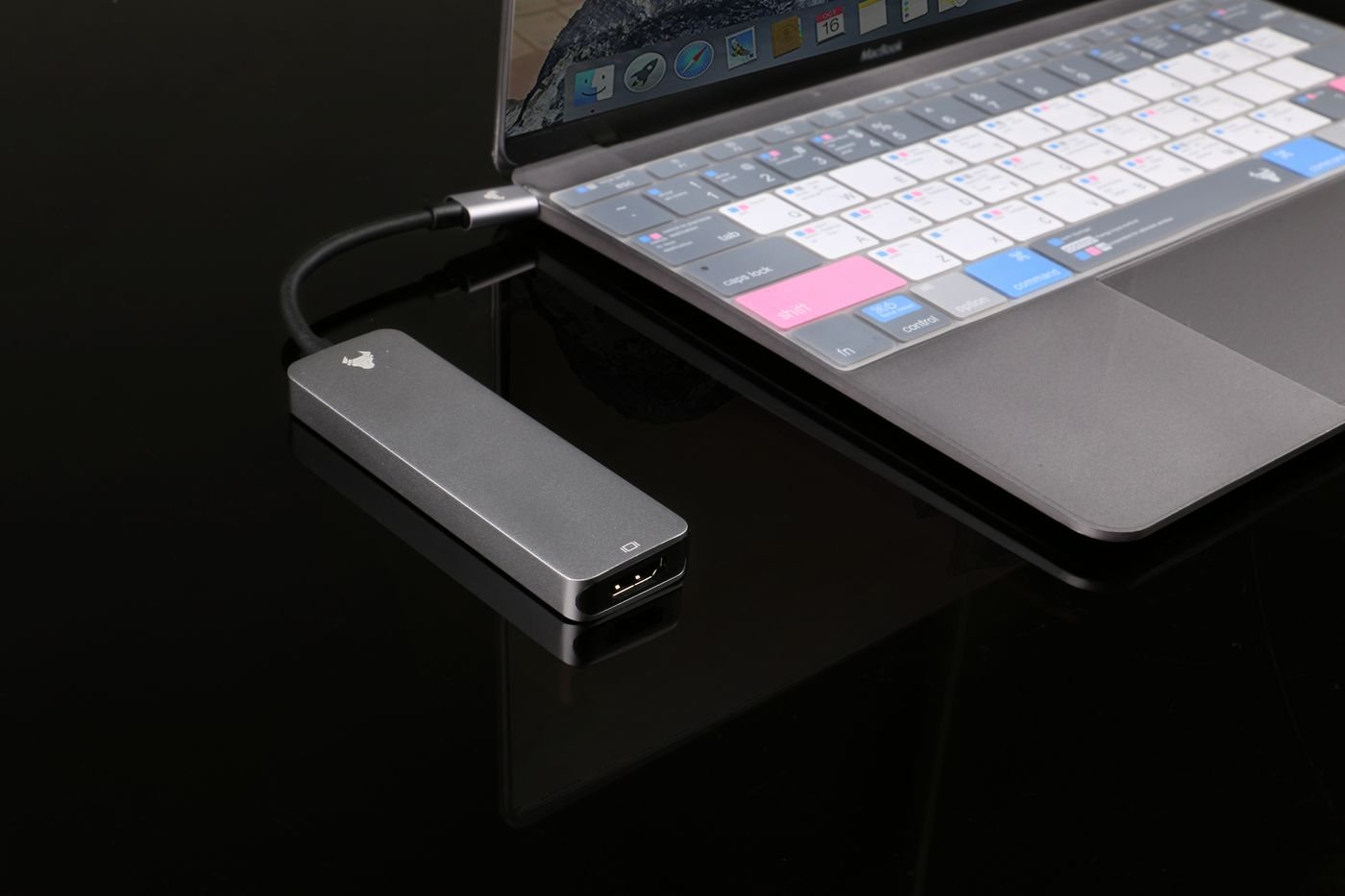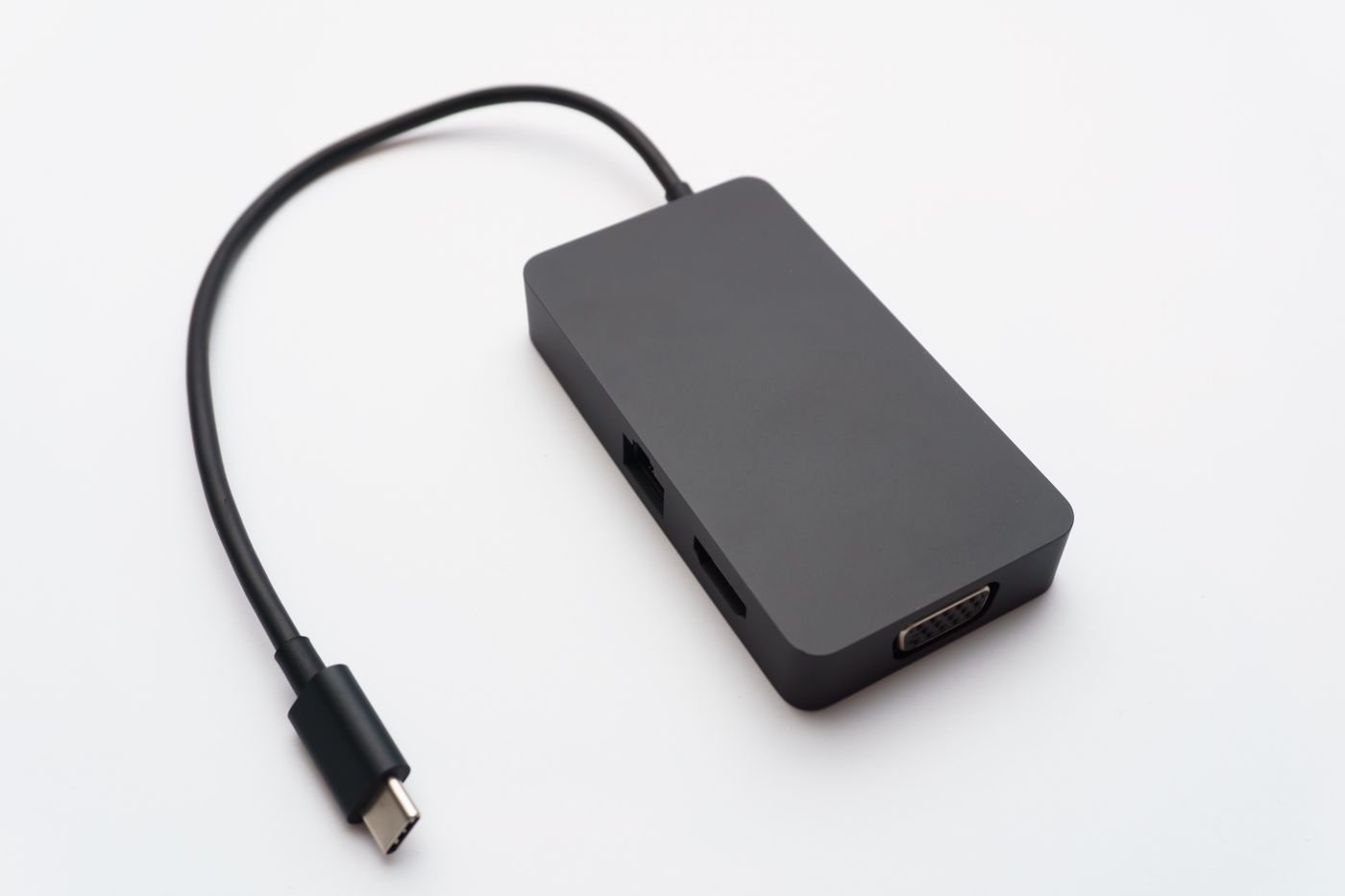
Start a dock shortlist with the equipment on your desk. Include the computer model, operating system, every monitor, and the accessories that must remain connected. Add the resolution and refresh rate you intend to use on each display. Two monitor sockets on a dock do not, by themselves, promise two independent desktops on every computer.
The most consequential entry is the host connection. Read the dock's requirements and the computer's port specifications together. Native video through USB-C needs the appropriate capability on the host. Other docks use a software-based display system and may require drivers or permissions. That distinction can affect installation on an employer-managed computer, so resolve it before buying.
Count working connections
Separate permanent devices from occasional ones. A keyboard, webcam, Ethernet cable, and backup drive can occupy four connections before a visiting flash drive arrives. Place storage and video devices against the dock's bandwidth description, and check whether any ports have restrictions when used simultaneously. Avoid choosing by the largest printed port count if half of those sockets cannot serve your workflow.
Charging can simplify a desk, but it needs a specific check. Find the power delivered to the host computer, not merely the adapter rating printed on the brick. Compare it with the computer manufacturer's recommendation for your workload. A computer that maintains its battery during email may behave differently during sustained rendering or other demanding work.
Check the desk fit
Measure the host cable's reach from the intended dock location. A very short attached cable may leave the dock dangling from a laptop stand. Check the cable and power connector clearances, whether frequently used ports face a convenient direction, and whether the power brick will fit without blocking ventilation.
Resolve the awkward cases before ordering
If two computers will use the same desk, check both independently. A dock that supports the desired monitors on one host may provide a reduced arrangement on another. Make a two-column comparison of charging, display modes, and required software rather than accepting a general claim of cross-platform support. Include whether the laptop lid will remain open, because the computer manufacturer may specify conditions for an external-display setup with the lid closed.
Ask the dock maker a concrete compatibility question when a specification is ambiguous: provide the host model, operating system, monitor models, and desired modes. Save the answer with the product information. A response addressing your combination is more useful than a broad compatibility badge, and can reveal a necessary cable or setup step before the purchase.
Before committing to the setup, read the manufacturer's compatibility table and return terms. Once the dock arrives, test the combination you actually need: all monitors at the intended modes, camera and audio in a call, network access, and a file transfer. Check reconnecting after sleep as well. Record any model-specific setup steps while they are fresh. Those notes are more useful than assuming that a successful single-monitor demonstration proves the entire workstation will work.