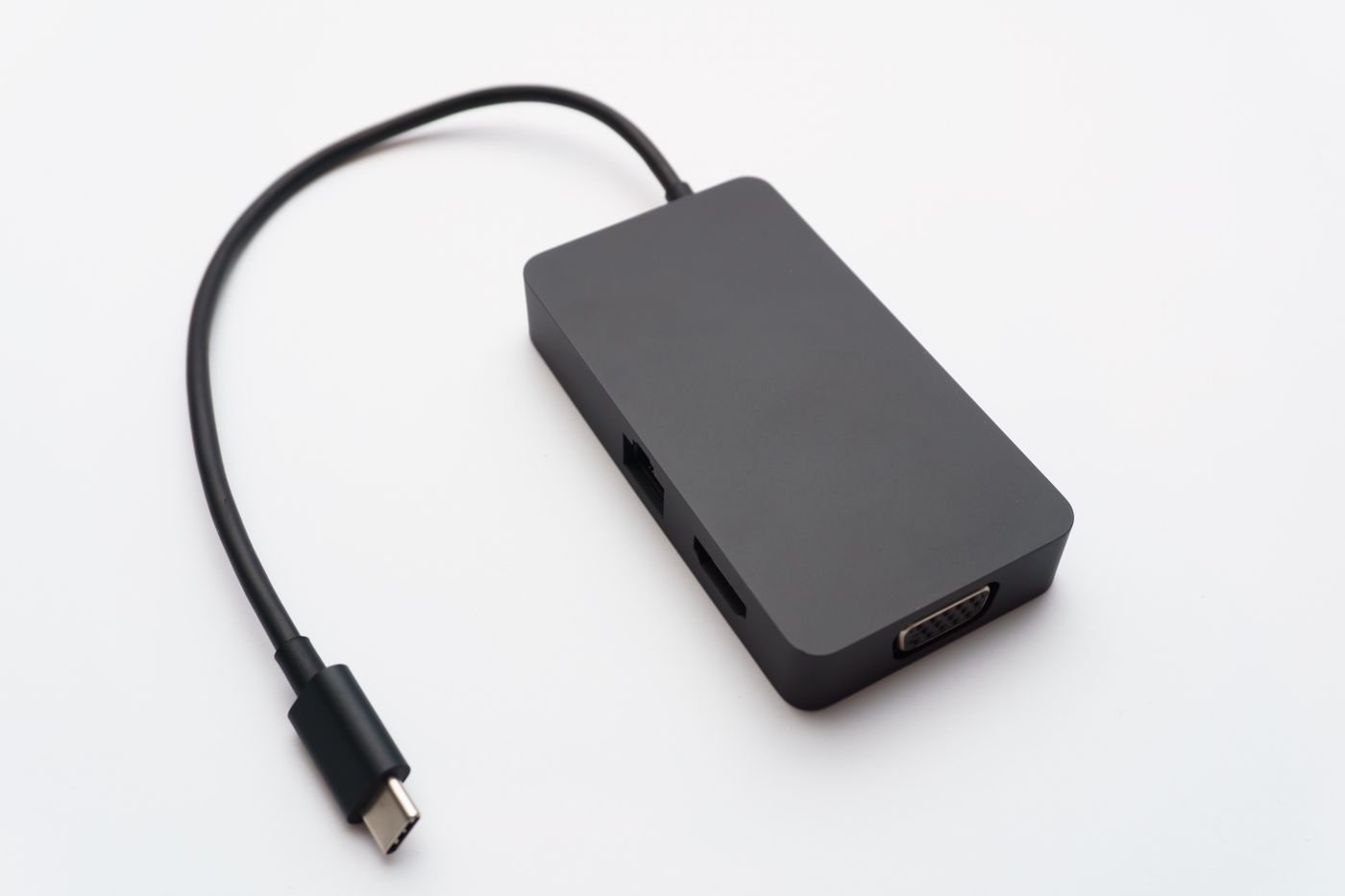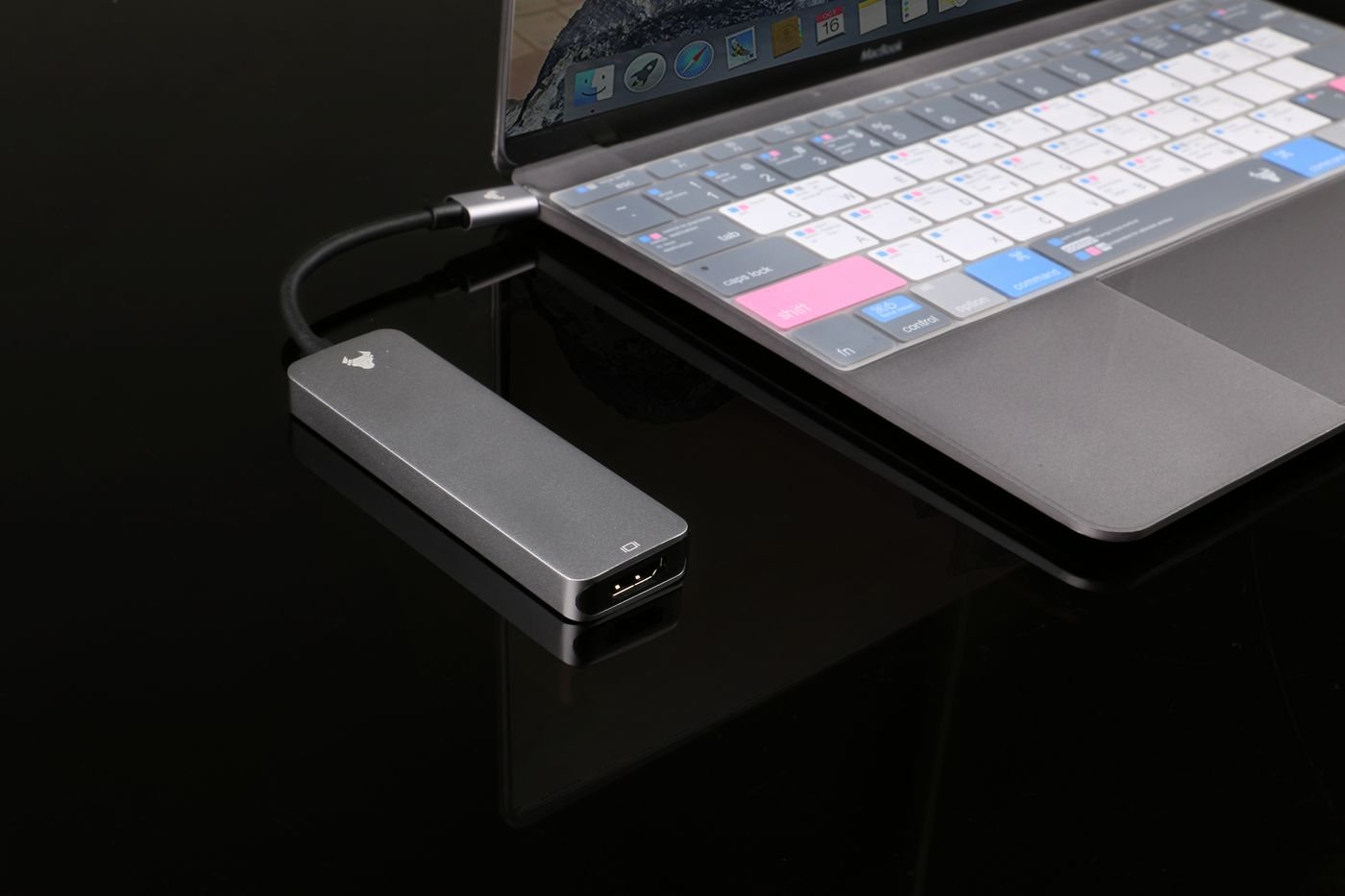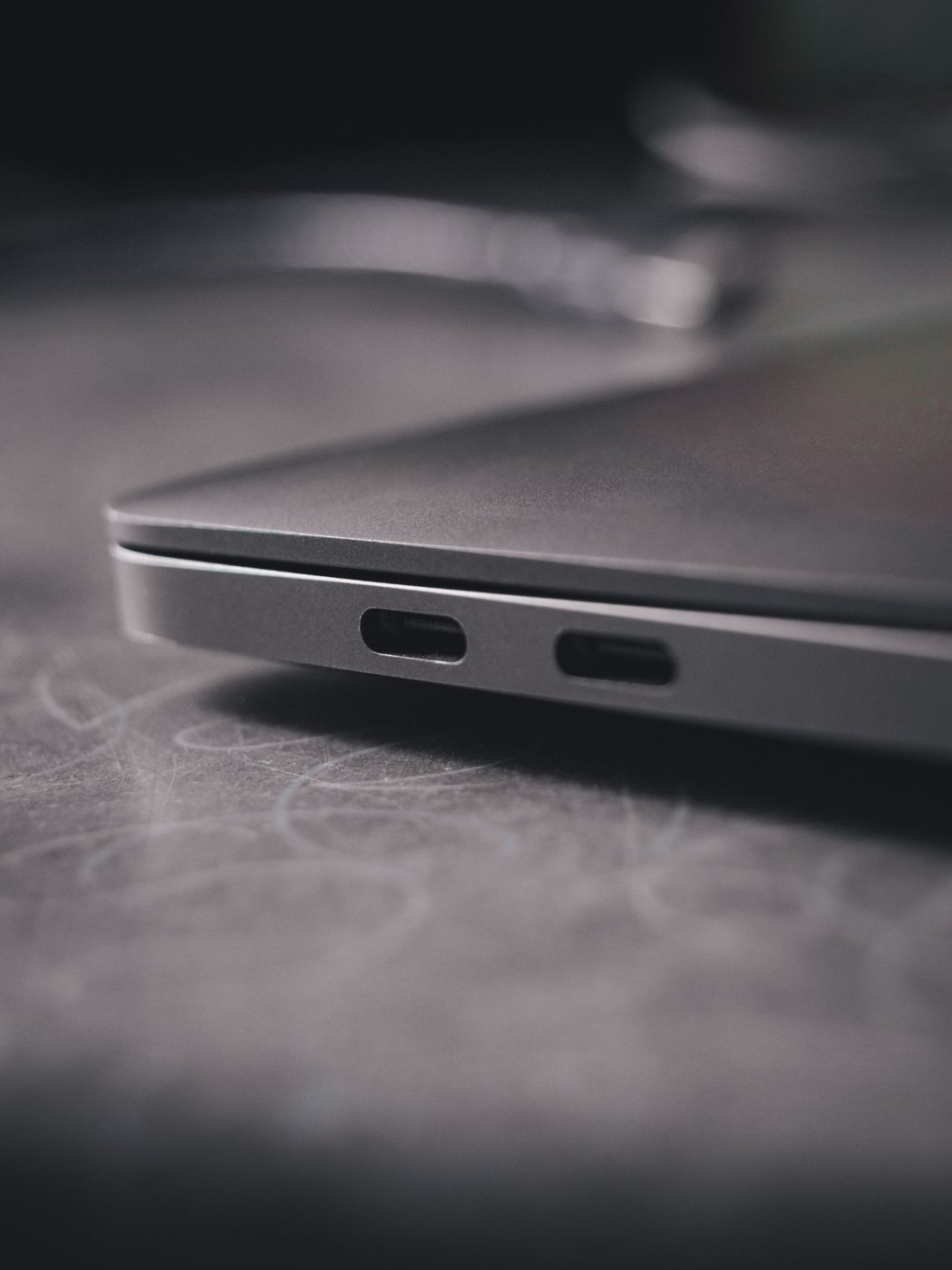
A small oval port can carry several different capabilities, but its shape does not tell you which ones are available. Before ordering an accessory, write down the exact computer model and the purpose of the connection: moving files, running a monitor, charging the computer, or doing several of those jobs together. A cable that succeeds at one task may be unsuitable for another.
Read the port specification, not just the picture
Locate the manufacturer's technical specifications or manual for your particular model and configuration. Record the data rate, any stated display support, and whether the port accepts charging. If there are several USB-C ports, check each separately. A diagram identifying the left and right sides of the computer can be more useful than a general statement that the computer has USB-C.
USB-IF treats the connector, USB data standards, and USB Power Delivery as distinct capabilities. This matters when a product listing simply says “USB-C compatible.” Ask what it supports through that connector. For a monitor connection, look for the computer's documented video output method and the accessory's matching requirement.
Follow the complete route
Consider a laptop, dock, cable, and display as one connection path. A limitation at any point can prevent the desired result. Write the intended display resolution and refresh rate beside the dock's supported configurations. For storage, compare the drive interface with the actual host port rather than assuming that a faster advertised drive makes the entire path faster.
Charging deserves its own line. Record the laptop's recommended adapter specification, the dock's host charging output, and the cable's power rating. A dock's power supply rating may include energy used by the dock and its accessories, so it is not necessarily the power delivered to the laptop.
Keep screenshots or PDFs of the relevant specifications with your purchase notes. They make it easier to distinguish an incompatibility from a defective item later. Once connected, verify each intended function independently: a short file copy, the display mode, and the charging status under normal work. Then try them together. If only the combined setup fails, that is useful evidence about shared resources or the dock configuration rather than a reason to replace every component at once.