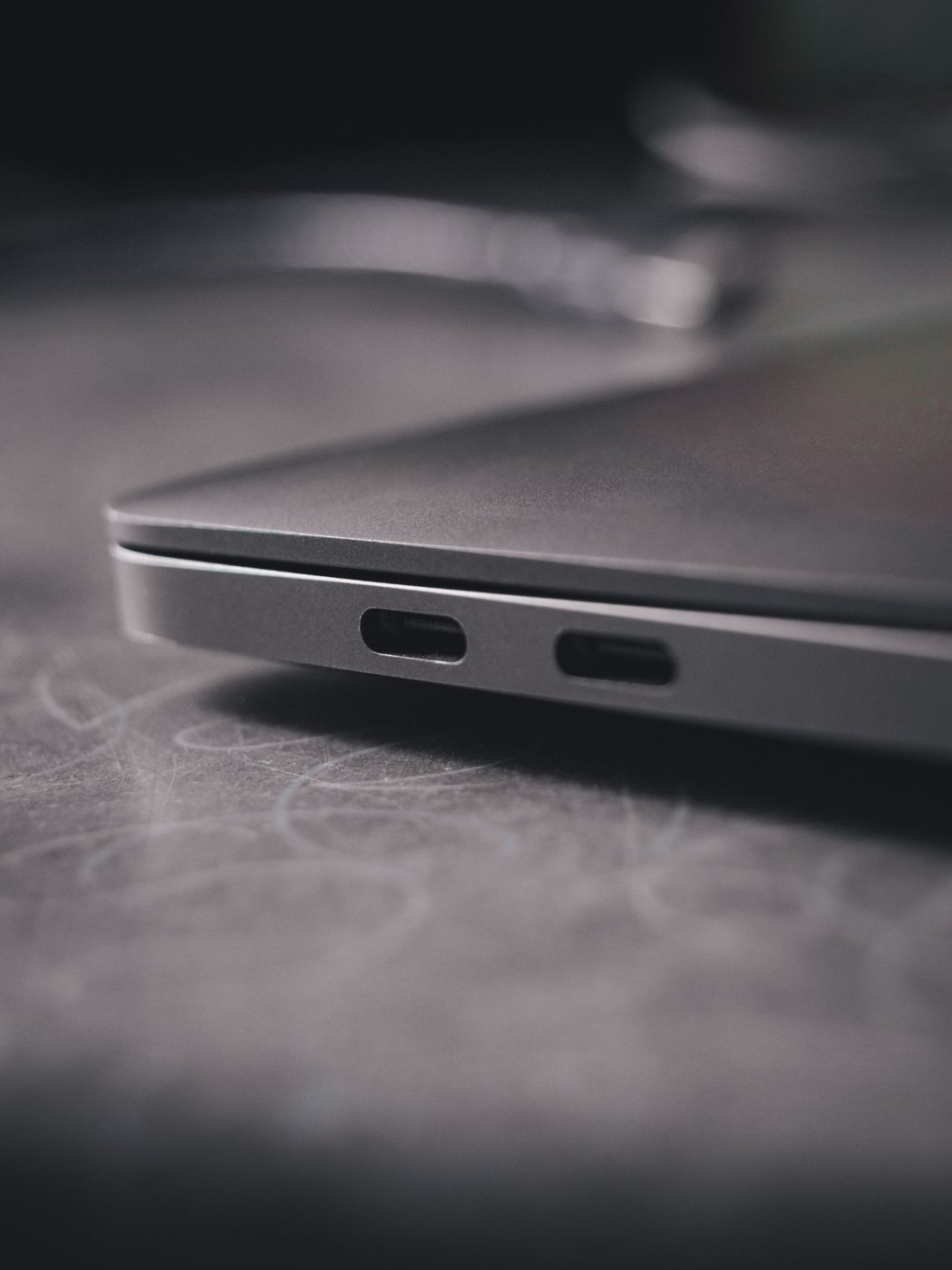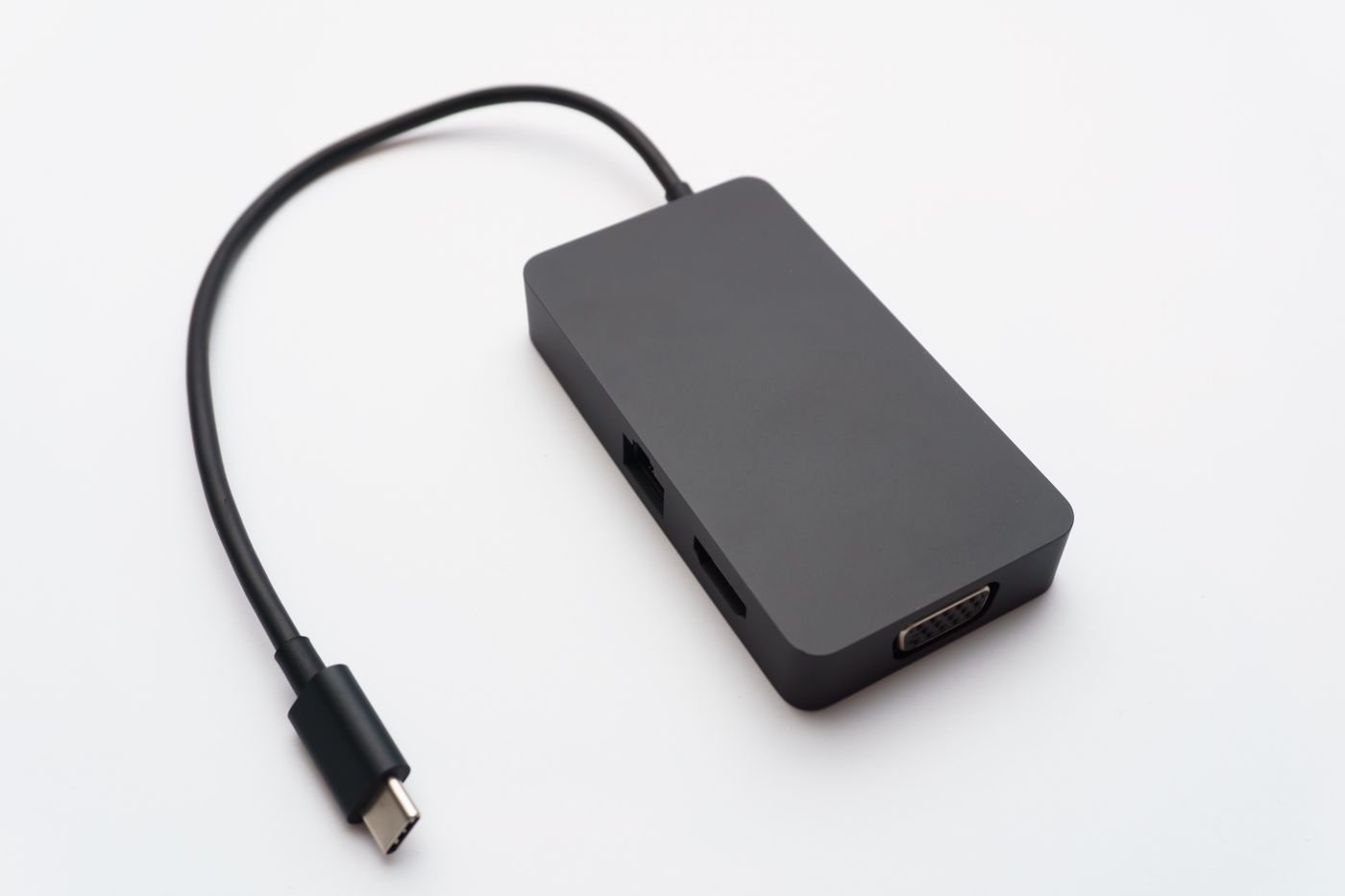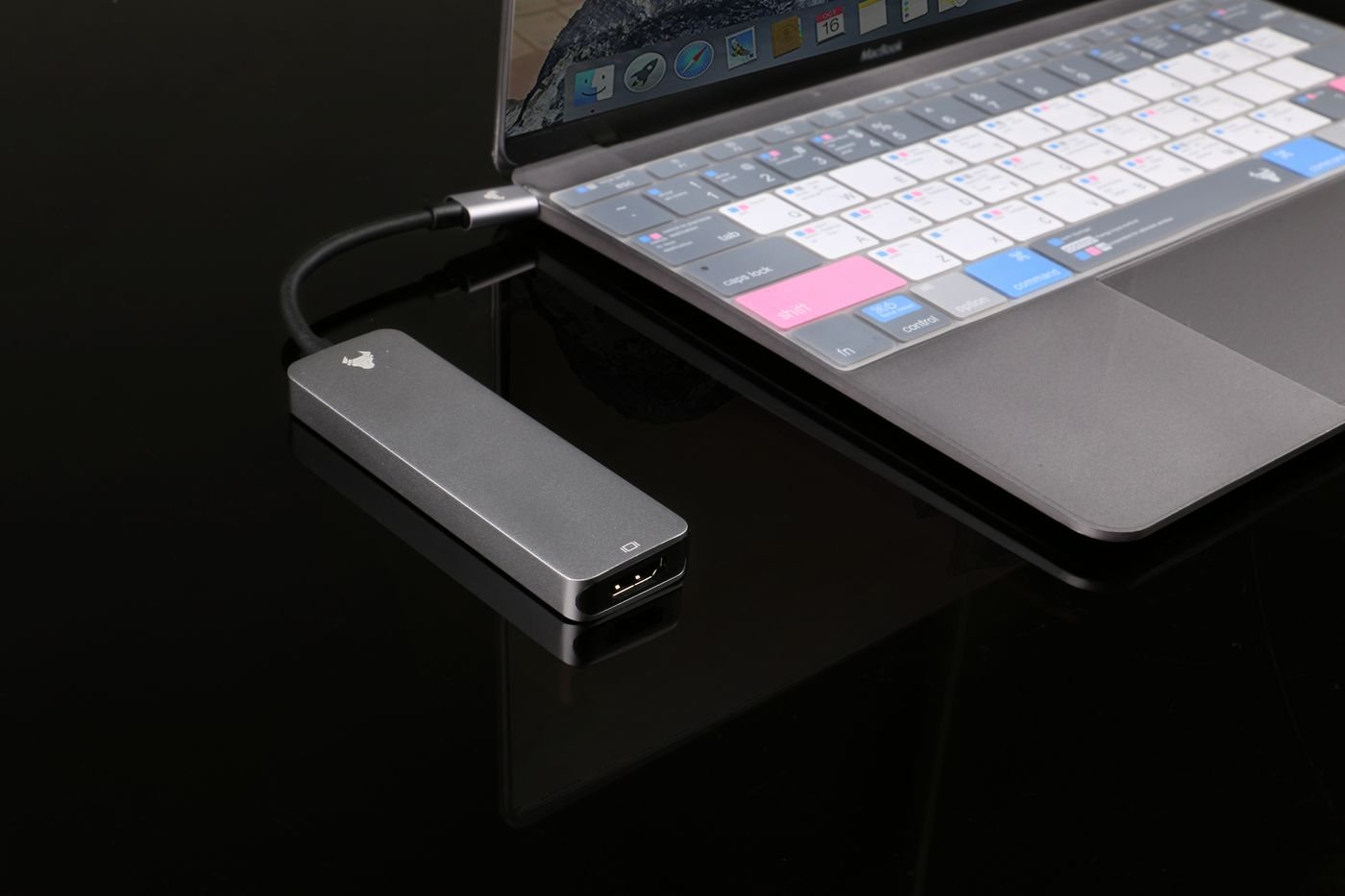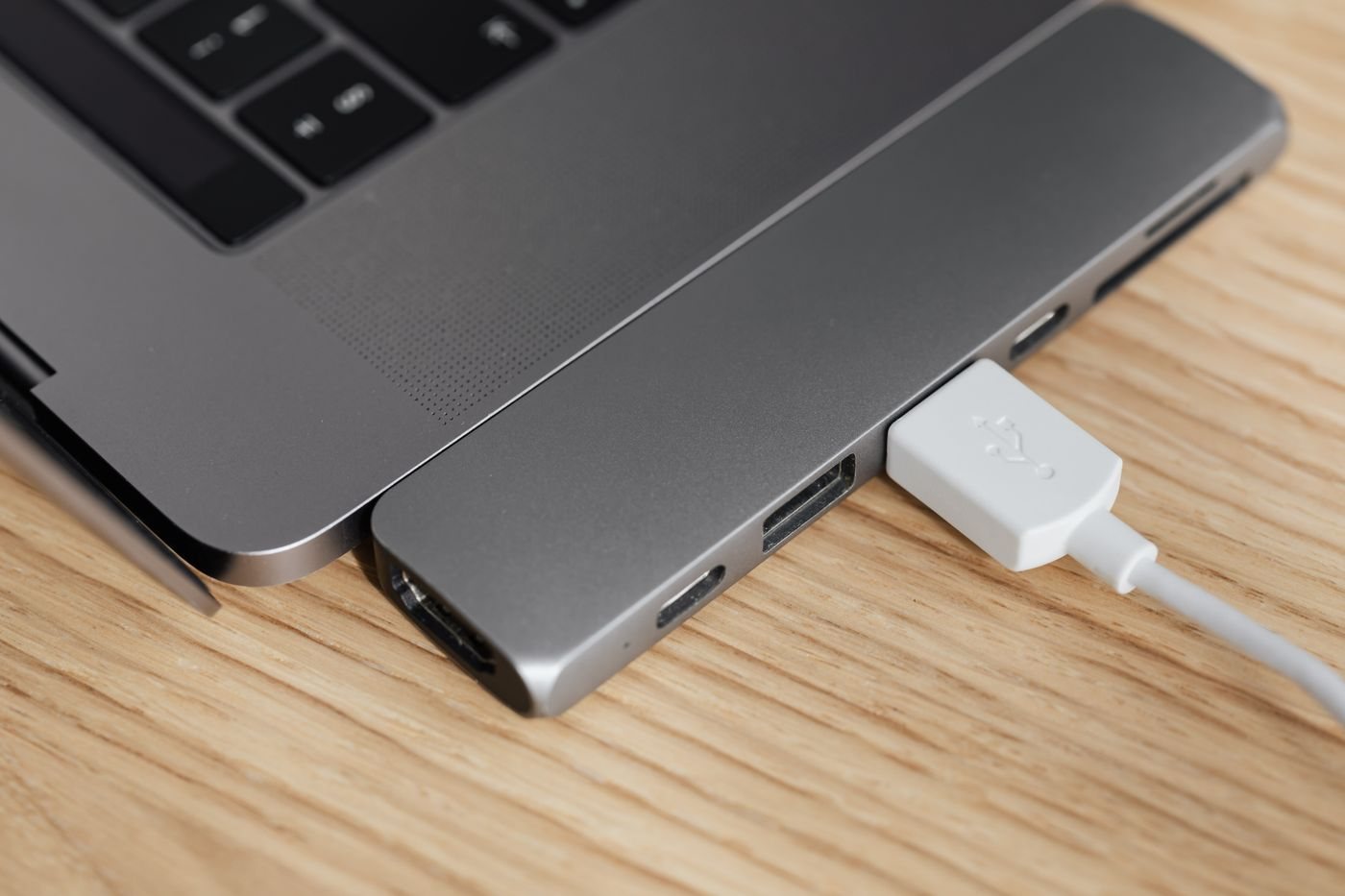
A wired connection can be useful at a desk where Wi-Fi is inconsistent or unavailable. If the laptop lacks an Ethernet socket, a compatible USB adapter can provide one. Start by checking the laptop's available port and the adapter's operating-system support, including whether a driver is required.
Do this while another connection is still available. Downloading a needed driver is much easier before the laptop depends on the new adapter for internet access. Use the manufacturer's official support page and the exact adapter model, rather than a third-party driver download site.
The adapter is one link
The speed printed on an adapter describes its supported network connection, not a guarantee of internet speed. The router or switch port, network cable, USB connection, and service itself can all affect the result. Choose for the local network you have or plan to build; buying a faster adapter alone cannot upgrade every other link.
Check the adapter's physical fit. A wide housing can block an adjacent port, while a short cable can make placement easier around a laptop stand. If the adapter is part of a dock, include that dock's host bandwidth and compatibility in the evaluation.
Connect the Ethernet cable to the intended router or switch port and confirm the operating system recognizes the adapter. Microsoft documents this basic sequence for its Surface adapter: connect the host side, attach the network cable, and check network status. Other adapters may have additional installation steps, so follow their instructions.
Verify the connection you are using
If Wi-Fi remains connected, make sure the test actually uses Ethernet before drawing conclusions about the adapter. Check the system's network status and the intended network name. Do not change advanced settings or disable a managed security configuration simply to make the status icon change.
On an office or campus network, access may depend on registration or administrator approval. A link light can indicate a physical connection without establishing that your device is authorized for the network. Ask the network owner rather than guessing static addresses.
If it does not work, test an intact known-working cable and a suitable network port, changing one item at a time. Record whether the adapter appears in system settings and any error message. This separates a recognition problem from a cable, network-access, or internet-service issue and makes a support request much more specific.