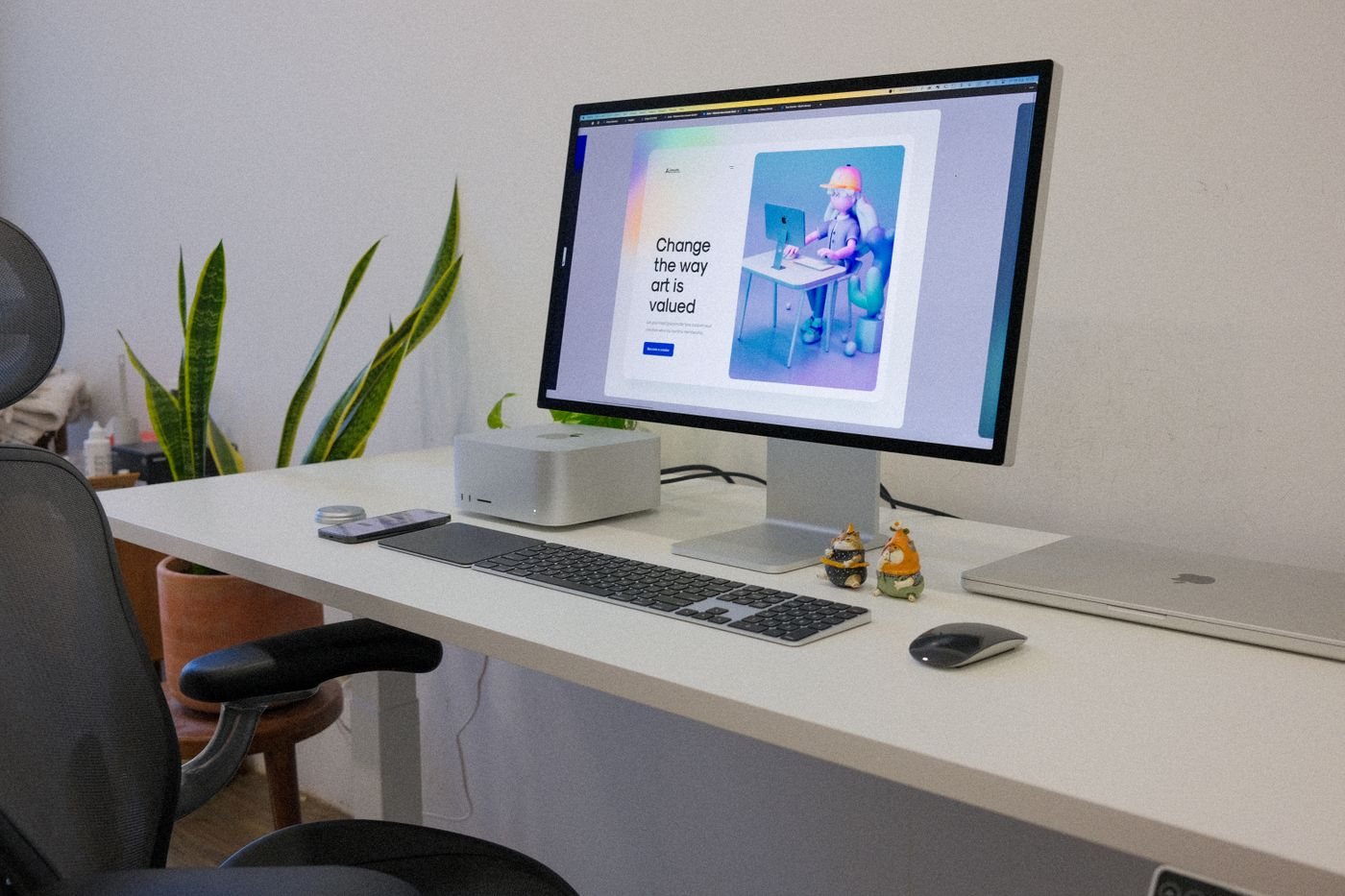
A KVM switch can let two computers share a keyboard, display, and mouse, but compatibility extends beyond counting computer inputs. Start with a diagram showing each computer's video output, the monitor's input, and the USB connection that carries keyboard and mouse data. A video cable alone usually does not provide the complete switching arrangement.
Record the intended resolution and refresh rate for every monitor. If you use two displays, look specifically for a supported dual-display configuration and the required outputs from each computer. A single-output computer is not made into a two-output source merely by connecting it to a larger switch.
Keep video and USB requirements visible
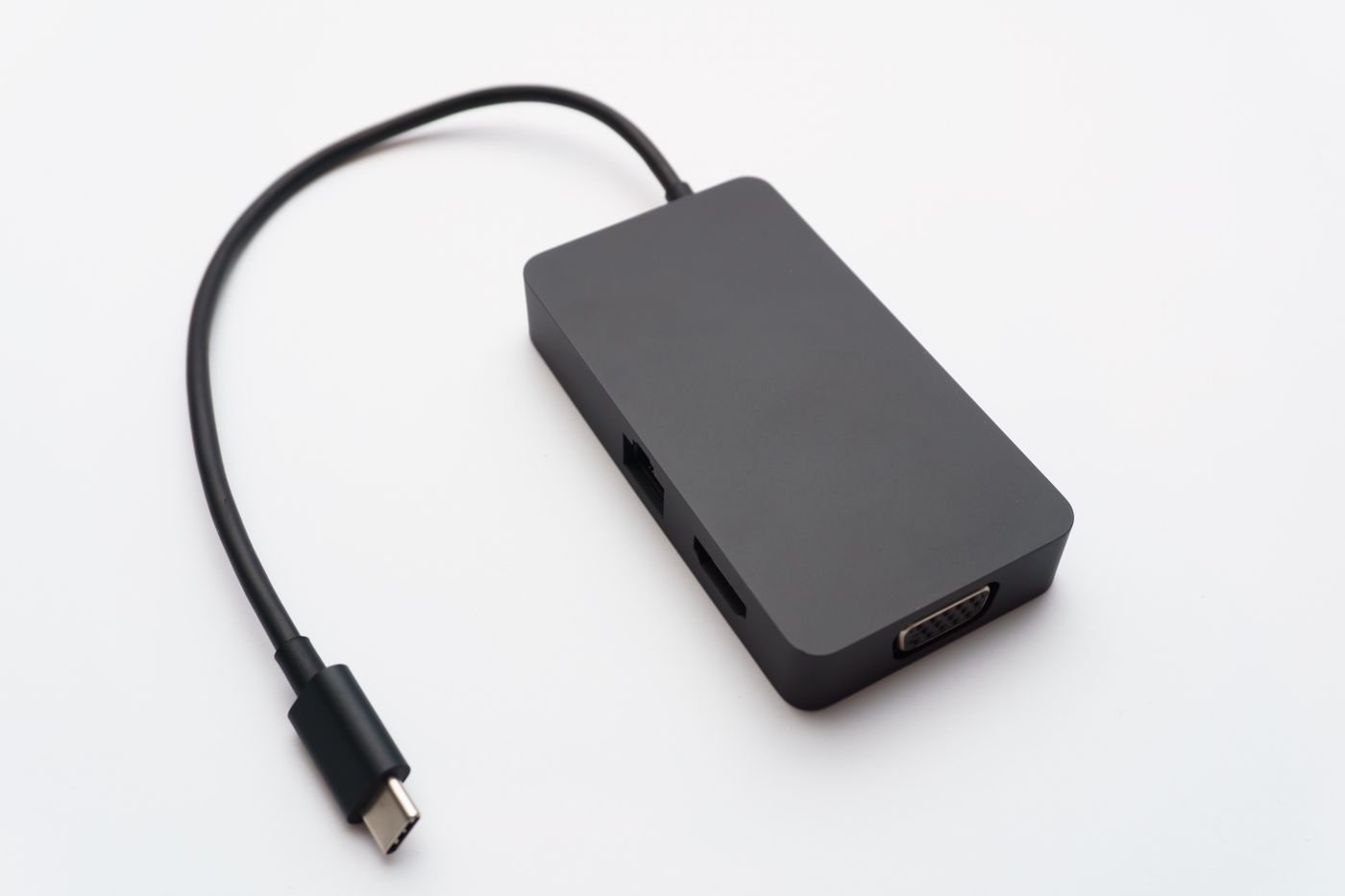
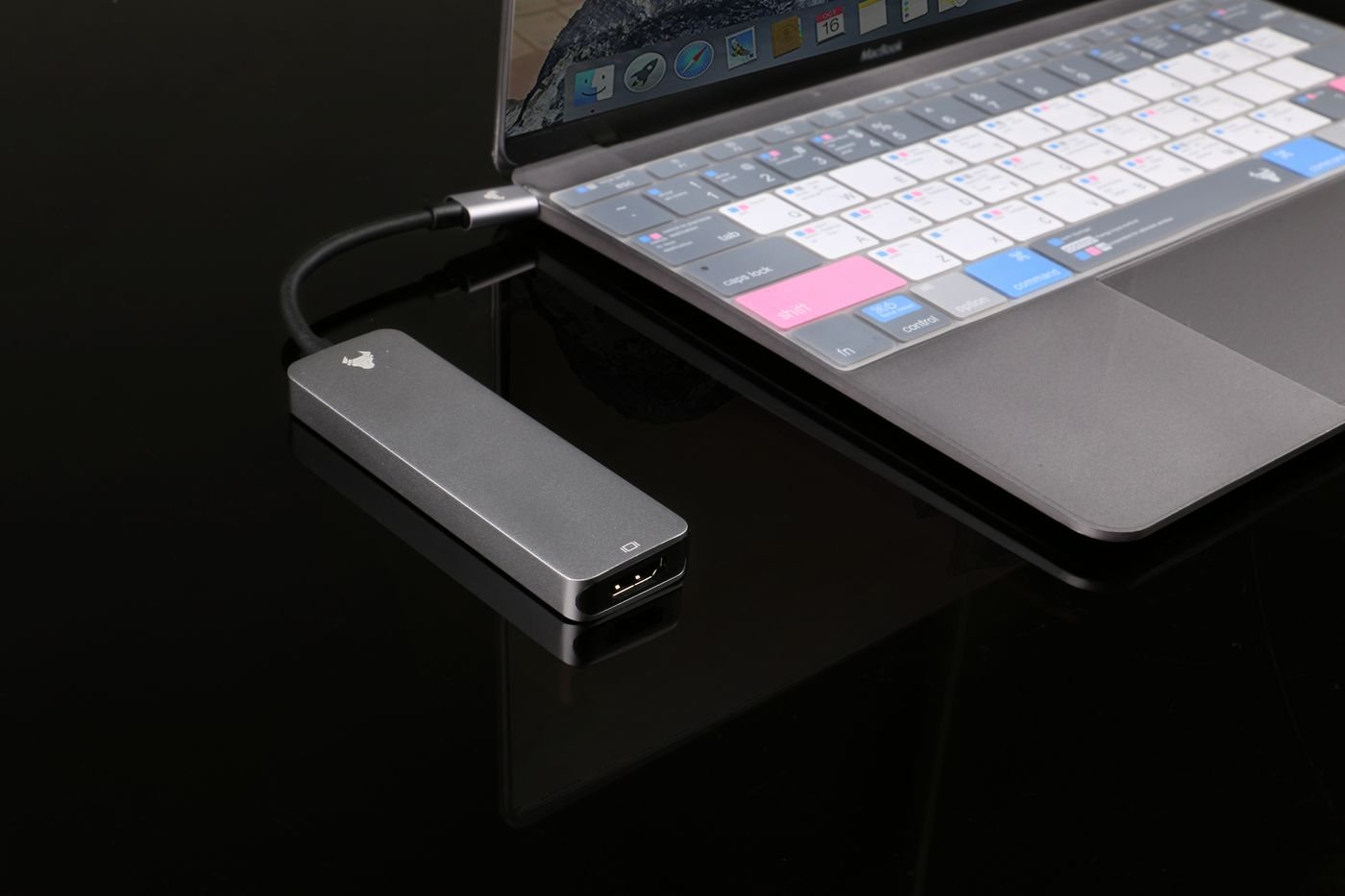
Read the switch's supported display modes, cable requirements, and any limitations on adapters. A route that includes a laptop dock adds another compatibility layer. Confirm the complete route instead of assuming that two individually compatible products must work together in every arrangement.
USB peripherals deserve separate attention. Dedicated keyboard and mouse ports may use emulation, while general USB hub ports pass devices differently. StarTech notes that advanced keyboards, high-power features, and programmable functions can have compatibility limits on dedicated HID ports. Moving a device to a general USB port may change hotkey support.
List everything you want to switch: webcam, headset, printer, or storage as well as input devices. Check whether the switch supports those devices and its available USB bandwidth. Do not switch a storage device away from a computer while a transfer is active; finish work and safely remove it first.
Consider the everyday transitions
Decide how you will select a computer. A reachable physical button may be easier than a keyboard sequence that conflicts with an application. Check how the equipment behaves after sleep, restart, or a disconnected laptop. Read whether display handling can cause windows to move when switching.
Also decide where audio belongs. If the display carries audio, changing video inputs may affect the output destination. A separate headset arrangement may be preferable for some workflows, but it should be deliberate.
Check whether you need keyboard access before the operating system loads. Firmware settings, startup selection, and some recovery screens can behave differently from a normal desktop session. If those tasks matter, look for explicit support and test them using the manufacturer's instructions. Keep a basic directly connected input device available for recovery if the arrangement requires it.
A shared desk may also involve separate employers or security environments. Confirm that sharing USB peripherals is permitted before connecting those computers through the same switch. A consumer convenience switch should not be described as providing a security boundary unless the specific product and organization's requirements establish that role. In some cases, separate peripherals are the appropriate arrangement even when a combined setup would be physically possible.
Test the exact computers and peripherals soon after purchase, while return options remain available. Include typing, mouse movement, display mode, sleep and wake, and any shared camera or audio device. Keep a direct connection as a troubleshooting baseline. A successful switch between two static desktops is useful, but the daily reconnecting routine is what determines whether the setup will remain convenient.