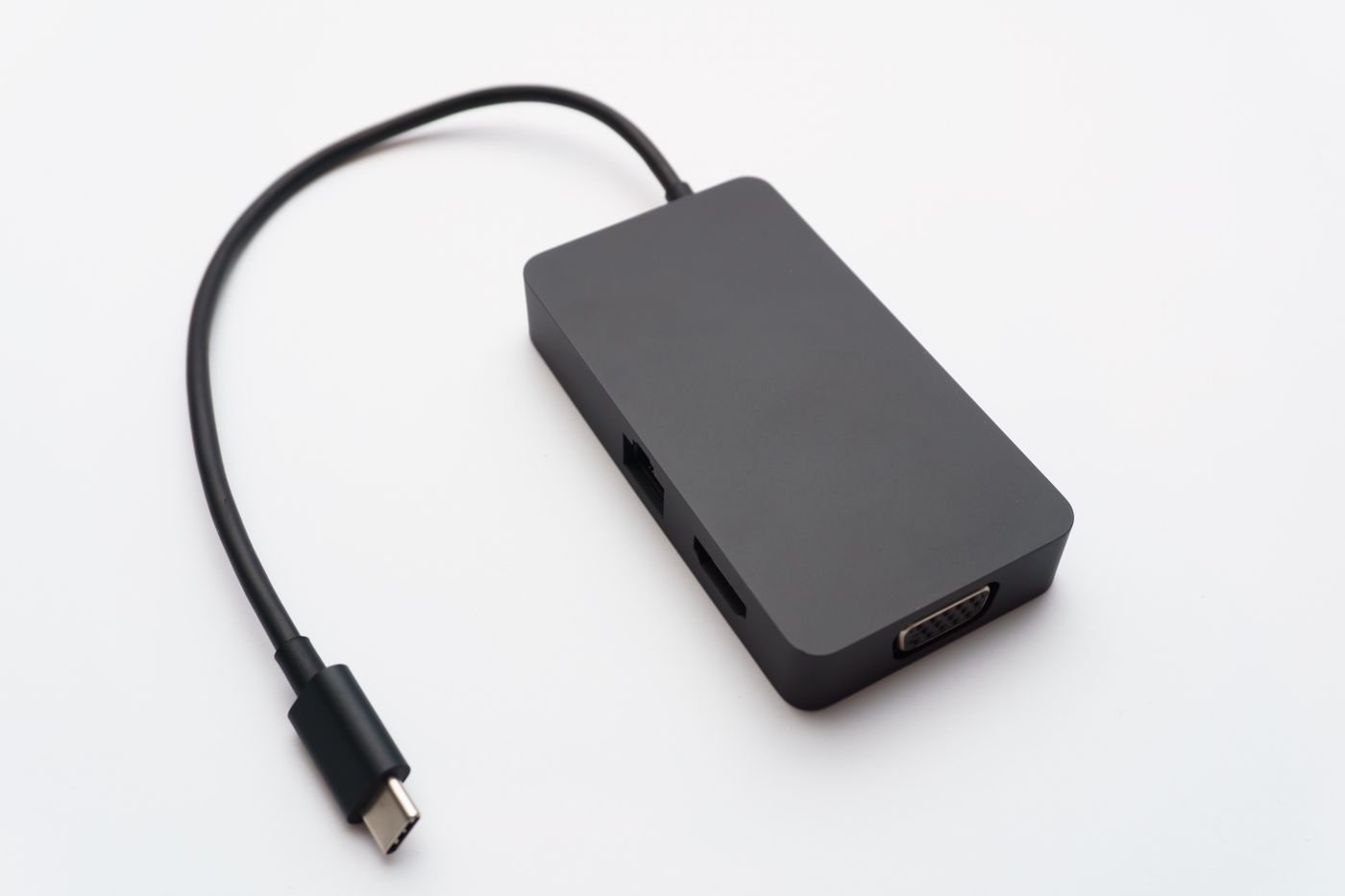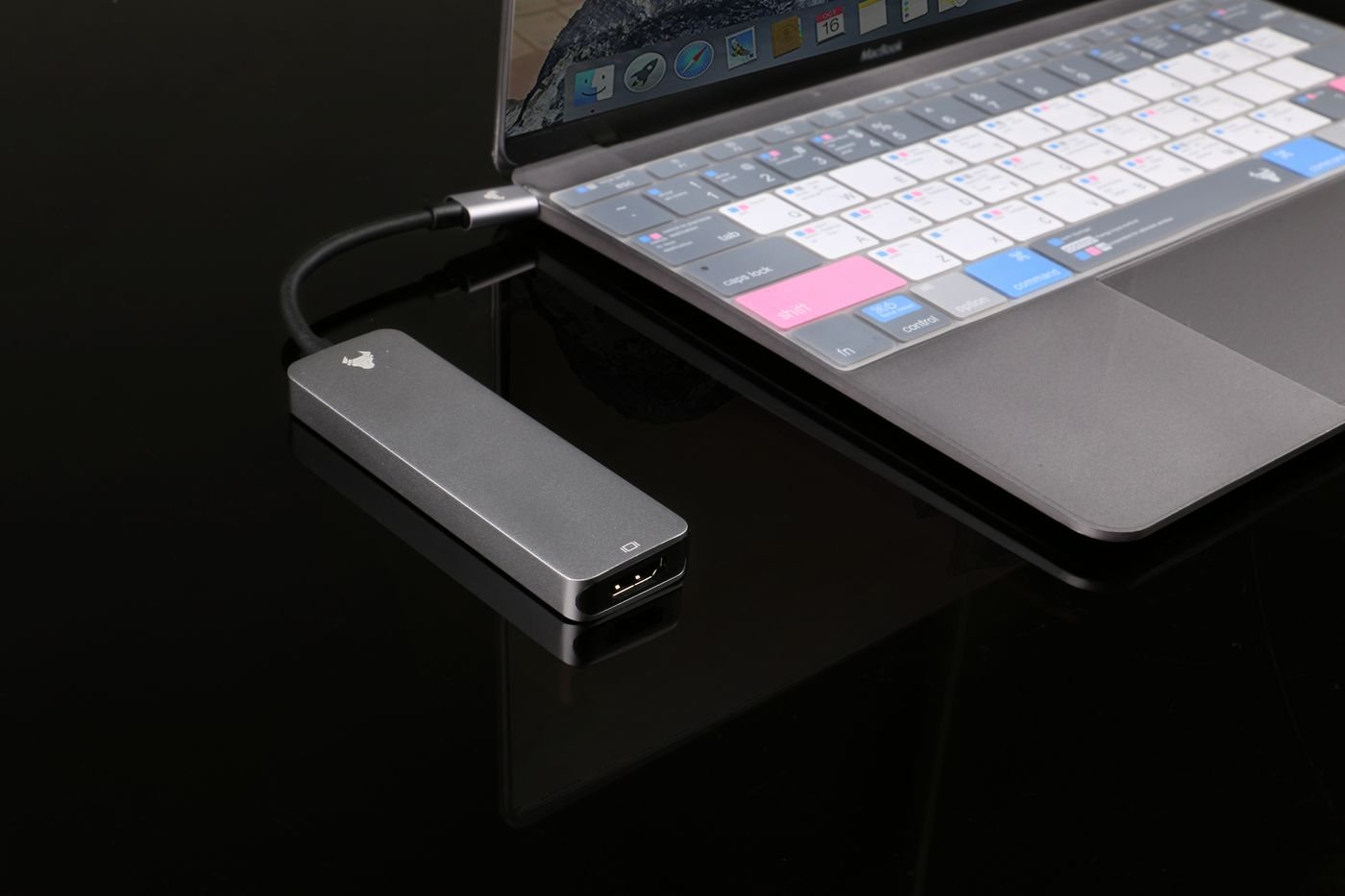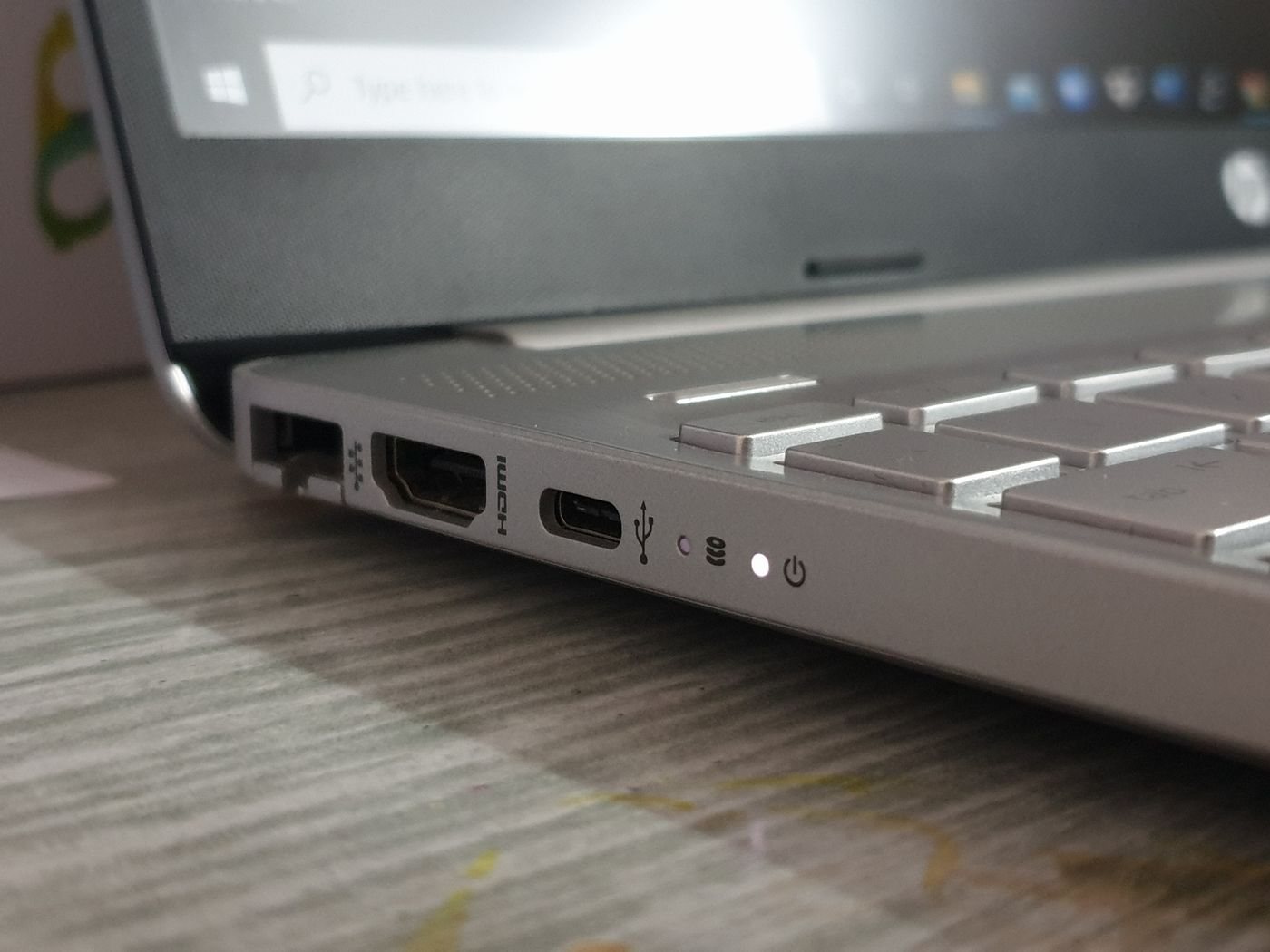
Before upgrading a computer or buying a dock, make a port inventory that includes capabilities as well as socket counts. Two computers with the same number of USB-C ports can support different display, data, and charging arrangements. A photograph is helpful for location, but the manufacturer's specification supplies the missing detail.
Create one row per physical port. Note its position, connector type, documented data capability, video support, and charging role where applicable. Use “unknown” when the documentation does not answer a question. That is more useful than copying an assumption into the inventory.
List the devices that need connections during a normal work session. Distinguish permanent accessories from occasional ones, and mark which devices run together. A backup drive and a card reader that are never used at the same time need different planning from two monitors that must always remain connected.
For monitors, record the input you use, resolution, and refresh rate. For charging, record the computer's recommended adapter and the power delivered by any current dock. For storage, record the connection type and whether the drive has its own power supply. These entries turn a vague port shortage into a specific requirement.
USB-IF's guidance separates connector terminology from performance and Power Delivery. Apply that discipline to your notes. Do not label every oval port as fast storage, video, and charging simply because another computer's similar port supports all three.
When considering a new computer, place its documented connections beside the existing equipment list. Identify what works directly, what needs an adapter, and what remains unsupported. Include the cost and physical clutter of required accessories in the comparison, without assuming that a larger dock solves every host limitation.
Keep a note of known-working combinations. A particular display cable and dock arrangement is useful evidence, but record the exact models so it does not become a universal claim. If you change the cable, driver, or operating system, update the note when the arrangement has been checked again.
Store the inventory with the manuals or equipment records. Review it when a device is replaced rather than rebuilding it from memory during a failure. A clear inventory can prevent duplicate purchases and makes support conversations more precise: you can explain which port, cable, and accessory are involved instead of describing everything as USB.